Website security for small businesses: prevent a hack and recover fast
Website security for small business: what to do first after a hack, outage or lockout, then the 2FA, updates, backups and domain checks that prevent it.
Website security for a small business rests on four habits: every account in the business’s name with two-factor authentication, software kept up to date with as few plugins as possible, backups you have restored at least once, and a domain that is locked and renews automatically. If something has already gone wrong, take back your email and domain first, change passwords and sign everyone out, save evidence, then clean, restore or rebuild.
Website security for small business owners is less about firewalls than about keys: who holds them, how they are protected and what happens when one goes missing. Most sites are not hacked by someone who chose them: a bot finds an outdated plugin or a reused password. And many outages involve no hacker at all, just a domain that lapsed because the renewal reminders went to a former designer’s inbox.
I mostly see the emergency side. Pilotech called me in a hurry when their old WordPress site was hacked: I got it back, built them a new website, and two years later we still work together. Eden Flats called me after a hack too. In fact, most of the emergency calls I get are about WordPress sites.
This guide is the hub of the rescue section. It starts with what to do first, and in what order, if your site is hacked, down or locked, then covers the habits that stop it happening: accounts, two-factor authentication, updates, backups and your domain name. You can do most of it yourself in an afternoon.
Website security for small business: what you are protecting
Four things are at stake, and the website’s code is only one of them:
- Accounts: the domain registrar, the hosting or website builder, the email. Whoever controls them controls the site.
- Software: WordPress with its plugins and theme, or the platform you build on.
- Data: contact forms, bookings, customer accounts, orders.
- Reputation: a warning in Google, spam pages under your name, fake invoices sent “from” your domain.
Here is what goes wrong most often, and what prevents it.
| What happens | What you notice | What prevents it |
|---|---|---|
| A password is guessed, stolen or reused | Someone logs in to your email, builder or registrar | A password manager and two-factor authentication |
| An outdated plugin or theme is exploited | Spam pages, redirects to scam sites, “This site may be hacked” in Google | Updates and fewer plugins |
| A former provider holds the logins | You cannot edit the site or move the domain | Accounts in your business’s name |
| The domain expires | Website and email go dark together | Auto-renewal and a card that is still valid |
| Someone spoofs your domain | Fake emails “from” you reach your clients | SPF, DKIM and DMARC records |
| There is no usable backup | A bad update or a hack means starting again | Backups and a tested restore |
None of this needs a security budget: a few hours of set-up, then a short check every month, cover most of it. For the rest of your IT, from laptops to phishing emails, the NCSC’s free small organisations guide to cyber security is a good place to start. My complete guide to cybersecurity for small teams covers the whole business, not just the website.
Hacked, down or locked out: what to do first
When something breaks, the order of your moves matters more than their speed. Here is the sequence to follow, whatever the platform.
If your site has been hacked
- Secure the inbox that receives your password resets: new password, two-factor authentication, and sign out every other session. Whoever controls that inbox can reset everything else.
- Do the same for the registrar, the hosting or builder account and the site’s admin area, and remove any user you do not recognise.
- Take the site offline, or put up a maintenance page, if it sends visitors elsewhere or shows spam. You protect your visitors, and your name.
- Before you clean anything, save a copy of the files, the database and the server logs, take screenshots and note the dates. They show how the attacker got in.
- Check whether personal data was exposed through forms, customer accounts or orders. If it was, and the breach is likely to put people at risk, report it to the ICO within 72 hours of finding out, through its personal data breach page, and keep a written record of the breach either way. You can report the crime to Report Fraud (reportfraud.police.uk or 0300 123 2040), the service for England, Wales and Northern Ireland that replaced Action Fraud on 4 December 2025; in Scotland, call Police Scotland on 101.
- Clean the site, restore a backup from before the hack, or rebuild. If you do not know how the attacker got in, rebuilding on clean ground with your own texts and images is often faster and safer than hunting infected files. For Pilotech, I recovered the old site and built a new one.
- If Google shows “This site may be hacked” under your results, open the Security issues report in Search Console, fix everything it lists, then click Request Review and explain what you fixed. According to Google’s help page, malware reviews take a few days, and sites hacked with spam can wait several weeks.
The WordPress version of these steps, with what to look for in the files and the database, is in WordPress site hacked? What to do in the first 24 hours. If you have never opened Search Console, my Search Console guide shows how to add your site first.
If your site is down or broken
Check the boring causes first, in this order:
- The domain. Look up its expiry date (ICANN Lookup for a .com, Nominet’s WHOIS for a .co.uk). An expired domain takes the website and the email down at the same time.
- The DNS. A deleted record, or nameservers changed during a “quick fix”, is enough to take a site down. DNS records explained shows what each record does.
- The host or platform. Check its status page before you change anything.
- The last thing that changed: an update, a new plugin, a snippet of code. On WordPress, if the dashboard will not load, renaming a plugin’s folder in
wp-content/pluginsthrough your host’s file manager switches it off. On Squarespace, safe mode (add/safeafter/configin your admin address) turns off custom code in the editor while you remove the faulty snippet, as I explain in my Squarespace code injection guide. On Wix, Site History restores an earlier version. - The last backup that worked, if nothing else helps.
If you are locked out, or a former provider holds the keys
Take back the domain and the email first: most other accounts can be recovered through them. Then look up who the registrant of the domain is, because that person or company holds it, whoever paid for it. How to get your domain name back from a former web designer covers what to do for a .com or a .co.uk if they refuse, and how to regain access to your website lists the other accounts to reclaim, with a request email you can copy.
One account per service, in your business’s name
Lockouts often start with a shortcut. A designer opens the domain, hosting and Google accounts with their own email address to save time, and nobody moves them when the work ends. The rule that prevents it is simple: every account belongs to your business, and everyone else gets their own login.
- Open each account with an email address on your own domain that you control, never a personal address or your designer’s.
- Make the business the registrant of the domain, not the person who happened to register it.
- Give your designer, developer or assistant their own access: a contributor on Squarespace, a collaborator on Wix, their own user on WordPress, with the Editor role if they only change content. You can then remove that access when the work ends, without changing your own password.
- Never share your own password, even with someone you trust. A shared login cannot be taken back from one person.
Then write an access list, one line per account, and keep it in your password manager or a secure document that does not live in your inbox.
| Account | What to note |
|---|---|
| Domain registrar | Registrant, expiry date, auto-renewal, transfer lock |
| DNS (often the registrar, sometimes Cloudflare or the host) | Where the nameservers point |
| Hosting or website builder | Plan, renewal date, administrators |
| Email (Google Workspace, Microsoft 365, Spacemail…) | Admin account, recovery phone and email |
| Search Console, Google Business Profile, Analytics | Owners and users |
| Anything connected to the site (payments, bookings, forms) | Who can log in |
On each line, add the login email, the two-factor method and where the recovery codes are kept. When someone leaves, the list tells you which access to remove. If you are not sure how the domain, the hosting and the email fit together, domain vs hosting vs email explains it.
Passwords and two-factor authentication
Two settings do most of the work: a different password for every account, and two-factor authentication on the accounts that matter.
A password manager remembers your passwords so you do not have to. It creates a long random password for each account, so a leak on one site does not open the others. For the few you must remember, such as the password manager’s own, the NCSC suggests three random words.
Two-factor authentication (2FA, also called 2-step verification) asks for a second proof after the password: a code from an app on your phone, a passkey or a security key. A stolen password is then not enough. Turn it on in this order:
- Your email, because it receives every password reset.
- Your domain registrar.
- Your website builder or hosting account, and the site’s admin area.
- The Google and social media accounts tied to the business.
An authenticator app or a passkey is safer than a code sent by text message, which can be diverted if someone takes over your phone number, but any second factor beats none. Save the recovery codes when you turn it on, on paper or in your password manager. Where the service allows it, add a second trusted person as an administrator, so that a lost phone does not lock the business out. My guide to two-factor authentication and passkeys shows how to switch them on everywhere in one afternoon, bank and payment accounts included.
Squarespace, Wix, Google, Microsoft and most registrars have two-factor authentication built in. WordPress does not: you add it with a plugin, and you keep administrator accounts for the people who really need them.
Updates and plugins: where WordPress sites get into trouble
WordPress itself is well maintained; the risk lies in what you add to it. Patchstack counted 11,334 new vulnerabilities in the WordPress ecosystem in 2025, 42% more than in 2024. About 91% of them were in plugins, and 46% had no fix from the developer when they were made public (Patchstack’s 2026 report). Each plugin is code written by a different developer, updated on their schedule, or not at all, which is why the number of plugins matters as much as the updates.
If your site runs on WordPress:
- Keep as few plugins as you can, and delete the ones you do not use: a deactivated plugin still has its files on the server.
- Turn on automatic updates for the plugins you trust. Since version 5.5, the Plugins screen lets you switch them on one by one, and WordPress installs minor security releases of its core by itself.
- Avoid plugins that have gone a long time without an update, and never install a free copy of a paid theme or plugin: pirated copies are a classic way in for malware.
- Ask your host to keep PHP up to date, and take a backup before any major update.
My honest view: WordPress is not insecure, it is demanding. It needs a webmaster all year round, and an out-of-date WordPress site is exactly what bots look for. When owners edit their site themselves, I move them to Squarespace, where the platform handles the software, the hosting and the security updates, and changing a word cannot break the layout. Businesses with the budget for a specialist every month can keep WordPress. The full comparison is in Squarespace vs WordPress, and the move itself in WordPress to Squarespace without losing your rankings.
On a builder like Squarespace or Wix, the platform patches its own software and servers. Your share is the accounts, the code you paste in and the apps you connect. A static site, such as one built with AI and published on GitHub Pages, has no database and no admin login on a server, so there is very little to attack; the risk moves to your GitHub account and your DNS. How to build a website with AI and host it on GitHub Pages shows that set-up.
Backups: the 3-2-1 rule and a restore you have tested
A backup only counts if you can restore it. The usual standard is the 3-2-1 rule: three copies of your site, on two different kinds of storage, one of them away from your host. For a small business site, that means the live site, the platform’s or host’s own backup, and a copy you keep yourself.
What you keep depends on the platform:
| Platform | What the platform keeps | What you keep yourself |
|---|---|---|
| WordPress | Host backups, which vary by host and plan: check how often they run and how long they are kept | A backup plugin that saves the files and the database outside the server, and a backup before every update |
| Squarespace | No full backup you can restore yourself | A duplicate of the site before a big change, the content export (partial: no products, events or custom CSS), and your images, texts and custom code in a folder |
| Wix | Site History, to restore an earlier saved or published version | Your texts and images: Site History does not roll back app content such as Stores, Blog or Bookings, and a Wix site cannot be moved to another host |
| Static site (Hugo, HTML, AI-built) | The Git repository keeps every version | A copy of the repository on your computer and a second one elsewhere |
Three habits make the difference:
- Back up as often as the site changes: daily for a shop or online bookings, weekly or monthly for a brochure site, and always before an update or a redesign.
- Keep one copy off the platform. A backup stored on the same server as the site can be hacked or lost with it.
- Test a restore every three months, on a test copy or a duplicate, and check the pages, the forms and the images. A backup you have never restored is a hope, not a plan.
Your mailboxes are not part of a website backup, and neither is what lives in third-party apps such as a booking tool: check how each one exports its data. For your mailboxes and files, my guide to backups for a small team applies the same 3-2-1 rule to Google Workspace, Microsoft 365 and your laptops.
Your domain name: locked, renewed and clean
Your domain is the master key. Your website, your email and the password resets for every other account depend on it, so it deserves a few minutes of attention every year.
- Check the registrant. It should be your business. If it is your designer or a former employee, sort it out now, calmly, rather than in the middle of an emergency.
- Protect the registrar account with two-factor authentication, and give it a recovery email on another domain: if your domain stops working, the reset emails sent to it stop too.
- Keep the transfer lock on. Registrars call it a registrar lock, domain lock or transfer lock, and most switch it on by default. It stops anyone moving the domain to another registrar without your say-so. A .co.uk has no transfer code (it moves when its IPS tag is changed), so the security of the registrar account matters even more.
- Turn on auto-renewal, with a card that will still be valid on the renewal date. Some registrars charge well before it: Squarespace, for example, charges the card 15 days ahead. Make sure the reminders reach an inbox someone reads.
- Clean up your DNS. Delete records that point to services you no longer use: a forgotten record can let someone else claim the subdomain it points to. GitHub, for example, warns against wildcard records such as
*.example.comfor that reason. - Authenticate your email. SPF, DKIM and DMARC let receiving mail servers spot and reject messages that pretend to come from your domain, and Gmail has required SPF or DKIM from every sender since February 2024. How to set up SPF, DKIM and DMARC walks you through each record.
If you want to move the domain to another registrar, do it while everything works: how to transfer a domain explains the authorisation code and the .co.uk IPS tag. Under the ICANN rules in force at the time of writing, a change of registrant on a .com can block transfers for 60 days unless your registrar offers an opt-out, one more reason not to leave it to the last minute. ICANN has adopted new rules but has not announced when they take effect, so check your registrar’s help page before a move. My comparison of UK domain registrars looks at the six I have used, on renewal price.
A website security checklist for every month, quarter and year
Most security is maintenance. Here is a checklist to pin next to your desk.
Every month
- Apply the updates (WordPress core, plugins, theme), or check that the automatic updates ran.
- Check that the last backup ran and that one copy sits off the platform.
- Look for users, pages or plugins you did not add.
- Open the Security issues report in Search Console, and send yourself a test message through each form.
Every three months
- Restore a backup to a test copy.
- Go through the access list and remove anyone who has left or finished their project.
- Read your DMARC reports, or the summary your email provider sends.
Every year
- Check the renewal dates of the domain, the hosting and the builder, and the expiry date of the card on file.
- Check the domain’s registrant and the recovery email and phone number on each account.
- Remove the plugins and integrations you no longer use.
- Check that HTTPS works on every version of your address, with and without www.
If someone built your site for free, this list is the part of the gift nobody mentions: a website needs looking after for as long as it is online. Website maintenance: what it covers and what it costs sets out who does what, and for how much.
When to hand it over
You do not need me, or anyone, for most of this guide. Two-factor authentication, auto-renewal, a backup plugin and an access list are an afternoon’s work. Bring in help when:
- the site is infected again after you cleaned it, which means the way in is still open;
- customer data may have leaked and you need to know what to report;
- you cannot tell who holds the domain, or the provider who holds it has disappeared;
- the site runs on a server or an account you cannot reach;
- Google’s warning stays after a review request.
When a rescue job comes in, I answer the same day or within 24 hours. The fee is paid upfront: I look at what is going on and fix it, and if I cannot, you get a written report to hand to another provider and I refund 70% of the bill. Recovering access to a website is a fixed-price job. For the clients I already look after, the emergency comes first and the invoice later.
A hack can also be the moment to start again properly. When Eden Flats called me after theirs, I built a new website and did the SEO and the visual branding, and owners started calling to have their properties managed. The Eden Flats project shows the site.
Frequently asked questions
How do I know if my website has been hacked?
site:yourdomain.co.uk on Google to list them), visitors sent to other sites, admin users you do not recognise, or your host suspending the account. Search Console also alerts verified owners when Google detects a problem.Does HTTPS mean my website is secure?
Do I need a security plugin on WordPress?
Who is responsible if my website is hacked, me or my web designer?
Can someone else take my domain name if it expires?
Joana MehouWeb designer, SEO and cold emailing specialist
Joana Mehou has been building websites since the age of eleven and founded MLK Web Studio in 2021, between London and Paris: websites, SEO, cold emailing and automation for small businesses in the UK and France, with honest advice, including when you do not need to hire anyone.
More about the studioHacked site, lost access, broken email: same-day answer, or within 24 hours.
 WordPress site hacked? What to do in the first 24 hours
WordPress site hacked? The first 24 hours in order: lock the attackers out, save the evidence, report a data breach, clean or rebuild, lift Google's warning.
WordPress site hacked? What to do in the first 24 hours
WordPress site hacked? The first 24 hours in order: lock the attackers out, save the evidence, report a data breach, clean or rebuild, lift Google's warning.
 How to regain access to your website when a former provider holds the keys
Regain access to your website when a former web designer holds the keys: the accounts to reclaim, a request email template, and what to do if they refuse.
How to regain access to your website when a former provider holds the keys
Regain access to your website when a former web designer holds the keys: the accounts to reclaim, a request email template, and what to do if they refuse.
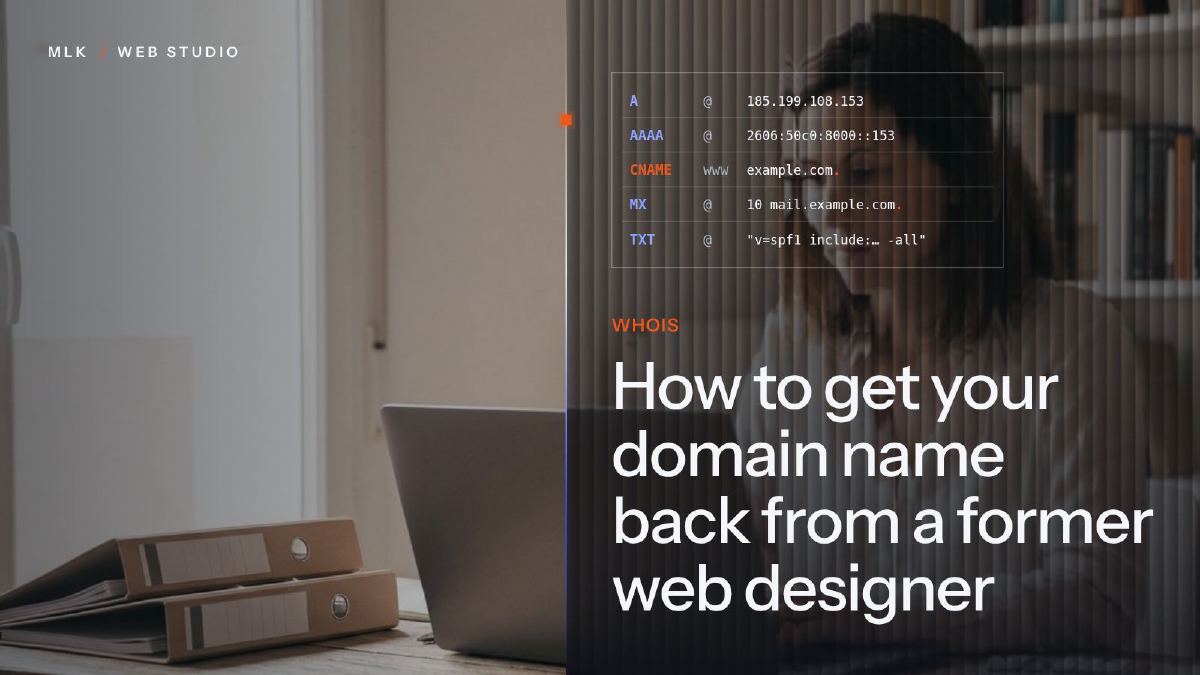 How to get your domain name back from a former web designer
How to get your domain back from a former web designer: find out who the registrant is, ask in writing, and what to do for a .com or .co.uk if they refuse.
How to get your domain name back from a former web designer
How to get your domain back from a former web designer: find out who the registrant is, ask in writing, and what to do for a .com or .co.uk if they refuse.