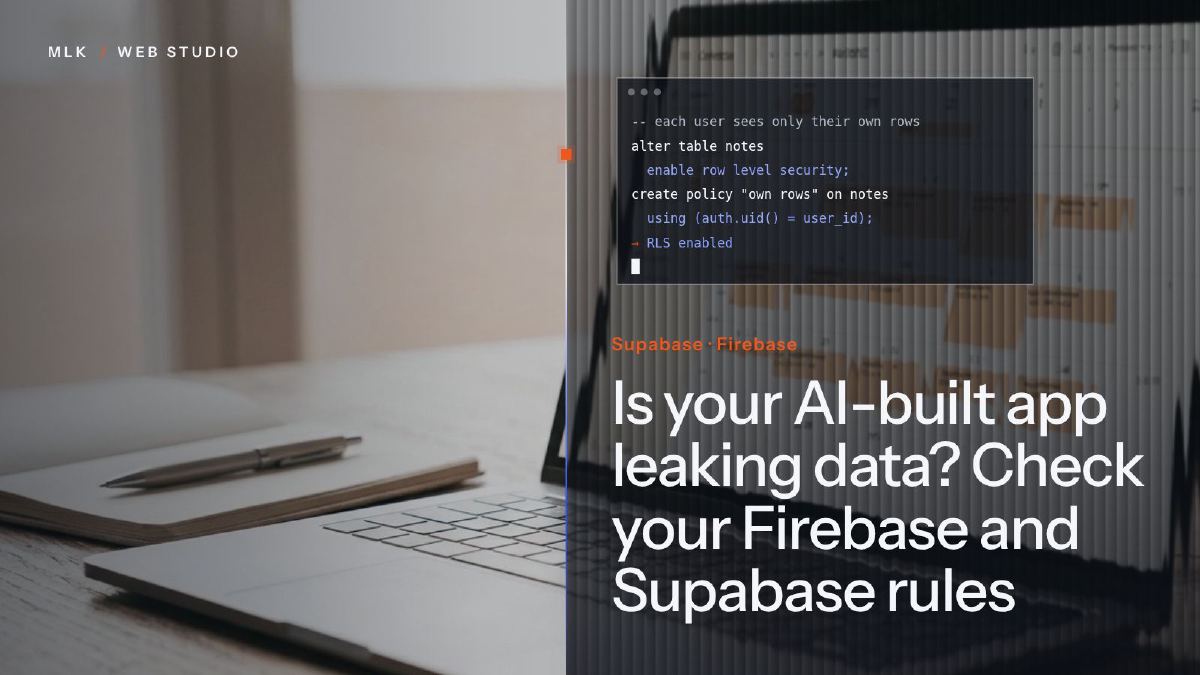
Is your AI-built app leaking data? Check your Firebase and Supabase rules
Supabase row level security and Firebase rules decide who can read your AI-built app's data. Test your app the way a stranger would, then close the gaps.
Apps built with AI tools usually talk to their database straight from the browser or phone, using a key anyone can read in the code. In Supabase, only row level security (RLS) then protects your tables; in Firebase, only the Security Rules do. Switch RLS on for every table with owner-only policies, replace test-mode rules with deny-by-default rules, then test your app with the public key and no login, the way a stranger would.
If your app was built with an AI tool and keeps its data in Supabase or Firebase, the key that connects it to the database sits in the app’s code, where anyone can read it. That is by design. What keeps strangers out of your tables is Supabase row level security (RLS) or Firebase Security Rules, and an AI builder can leave both wide open while the app looks finished and works perfectly.
This tutorial shows you how to list where your data lives, switch those protections on and test your app the way a stranger would: with the public key and no login. You do not need to be a developer to run the checks, but you do need to read each line of SQL or rules before you paste it.
I build software for my own use, not for sale, so I know how satisfying it is to need a tool and build it yourself. AI has shrunk delivery times; it has not shrunk the time it takes to check who can read the data. Menu names are those of the Supabase and Firebase documentation in October 2026. This tutorial is part of my guide to launching a mobile app.
Why AI-built apps leak: the key in your code is public
Most AI app builders generate screens that talk to the database directly: Lovable’s apps typically run on Supabase, FlutterFlow apps often on Firebase. To do so, the app carries a project address and a public key, Supabase’s anon key (being replaced by the publishable key) or the apiKey in your Firebase configuration. Anyone can read them in a web page’s code, or extract them from a mobile app with free tools, which is why my guide to API keys in mobile apps treats every key shipped in an app as public.
Both platforms plan for this. Firebase’s documentation says its API keys identify your project and do not control access to your data: that is the job of the Security Rules. Row level security is the Supabase equivalent, a Postgres feature that checks every request against policies attached to each table, row by row. With no rules, or rules that say yes to everyone, the key opens everything.
Two documented cases:
- Lovable apps, 2025. A researcher scanned 1,645 apps from Lovable’s public showcase and found 170 that let outsiders read data such as email addresses, and in some cases API keys, because row level security was missing or too weak. The case is recorded as CVE-2025-48757; Lovable disputes it, saying each customer is responsible for protecting their own app’s data.
- Tea, July 2025. The dating-safety app said about 72,000 images had been accessed without authorisation, including selfies and photo IDs that users had sent to verify their accounts (TechCrunch). Tea spoke of a “legacy data storage system”; according to early reports, which Tea did not confirm, the files sat in a Firebase storage bucket that asked for no login. Tea was not presented as an AI-built app: open storage is an older mistake than vibe coding.
Whoever is to blame, the fix is yours to make. My guide to building an app with AI covers what you can safely make alone; this tutorial is for the moment real data goes in.
Step 1: find out where your app keeps its data
AI builders create tables as they go, so start with a short inventory.
- Identify the platform. Open your app in a browser, open the developer tools (F12 in Chrome on Windows), choose the Network tab and use the app for a minute. Requests to an address ending in supabase.co mean Supabase; requests to firestore.googleapis.com or firebasestorage.googleapis.com mean Firebase. For a phone-only app, your builder’s settings show which one it uses.
- List every table or collection, and every storage bucket holding photos, PDFs or scans. In Supabase, the Table Editor and the Storage page list them; in Firebase, the Firestore Database and Storage pages of the console.
- Decide who should read each one. A simple grid is enough:
| What | Examples | Who should read it |
|---|---|---|
| Public content | services, prices, opening hours | Anyone |
| Personal data | profiles, quote requests, bookings | The person it belongs to (and your staff) |
| Files | ID scans, invoices, photos | The owner of the file |
| Back-office data | internal notes, exports | Your server only |
Anything in the “Anyone” row should be public by choice, not by accident. Everything else needs a rule. Staff access needs a role check on top of the owner rules below: if your app has staff and client accounts, have a developer write that part with you.
Step 2: switch on Supabase row level security, table by table
In Supabase, RLS is a switch on each table plus policies that say who may do what. The default catches people out: Supabase’s documentation says tables created in the dashboard’s Table Editor have RLS switched on, while tables created in the SQL Editor or by another tool need it switched on explicitly. An AI builder that creates tables through SQL falls into the second case. Once RLS is on, the public key reads nothing until a policy allows it.
Open the SQL Editor in your project and run this read-only query:
-- Which tables in the public schema have RLS switched off?
select tablename, rowsecurity
from pg_tables
where schemaname = 'public'
order by rowsecurity, tablename;
Every row showing false is a table protected only by its grants, the access rights each role has on the whole table. Supabase has long given the API’s anonymous and signed-in roles access to each new table in the public schema, so on most projects such a table can be read and changed by anyone holding your public key. On projects created since 30 May 2026, new tables no longer get those grants by default; older projects are due to follow on 30 October 2026, and tables that already exist keep theirs. Then list the policies that already exist:
select tablename, policyname, cmd, roles, qual, with_check
from pg_policies
where schemaname = 'public';
A policy whose condition is just true lets in everyone it applies to. A policy that only checks that the user is signed in is barely better when anyone can create an account in your app.
To fix a table that holds personal data, here a quotes table whose user_id column holds the ID of the account that owns each row:
-- 1. Switch RLS on: from now on, nothing gets through without a policy
alter table public.quotes enable row level security;

-- 2. Signed-in users read only their own rows
create policy "Owners read their quotes"
on public.quotes for select
to authenticated
using ( (select auth.uid()) = user_id );

-- 3. They can only create rows that belong to them
create policy "Owners create their quotes"
on public.quotes for insert
to authenticated
with check ( (select auth.uid()) = user_id );

-- 4. They can edit their rows but not hand them to someone else
create policy "Owners update their quotes"
on public.quotes for update
to authenticated
using ( (select auth.uid()) = user_id )
with check ( (select auth.uid()) = user_id );
auth.uid() returns the ID of the signed-in user making the request; wrapping it in (select ...) is the form Supabase recommends for speed. There is no delete policy, so nobody can delete a quote from the app: add one only if you need it.
A table your app never reads directly, such as notes that only your server writes, needs RLS on and no policy at all; you can also take away public access altogether: revoke all on public.internal_notes from anon, authenticated;. Then open the Security Advisor in your project dashboard. It flags tables with RLS switched off (“RLS Disabled in Public”) among other problems, and Supabase emails project owners about such tables: if one of those emails is in your inbox, start there. The Supabase row level security guide has more policy examples.
Step 3: lock down Supabase storage and keep the secret key out of the app
Files live in storage buckets, with access rules of their own. A public bucket serves any file to anyone who has its address: fine for product photos, not for ID scans or invoices. Keep personal files in a private bucket, where every read and upload goes through policies on the storage.objects table. A common pattern stores each user’s files in a folder named after their user ID:
-- Private bucket 'documents': each user reads only the files
-- in the folder named after their own user ID
create policy "Users read their own files"
on storage.objects for select
to authenticated
using (
  bucket_id = 'documents'
  and (storage.foldername(name))[1] = (select auth.uid()::text)
);
Uploads need an insert policy with the same condition, written with with check. Then check the keys: the anon or publishable key may sit in your app, the service_role or secret key must never. That key bypasses row level security completely, so it belongs on a server or in an Edge Function, nowhere else.
Step 4: replace Firebase test mode with deny-by-default rules
When you create a Cloud Firestore database, Firebase asks you to choose between locked mode and test mode, and describes test mode itself: it “allows anyone to read and overwrite your data”. Builders and tutorials often pick it because everything works at once.
In the Firebase console, open Firestore Database, then the Rules tab, and look for these lines:
allow read, write: if true;opens the database to the whole internet.allow read, write: if request.time < timestamp.date(...)is what test mode writes: open to everyone until that date.allow read, write: if request.auth != null;lets in anyone who signs in, which in most apps means anyone who creates an account.
Replace them with rules that deny everything by default and let each user reach only their own documents:
rules_version = '2';
service cloud.firestore {
  match /databases/{database}/documents {
    // A quote can be read, changed or deleted only by its owner
    match /quotes/{quoteId} {
      allow read, delete: if request.auth != null
        && request.auth.uid == resource.data.ownerId;
      allow create: if request.auth != null
        && request.auth.uid == request.resource.data.ownerId;
      allow update: if request.auth != null
        && request.auth.uid == resource.data.ownerId
        && request.resource.data.ownerId == resource.data.ownerId;
    }
    // No other match block: every other path is refused
  }
}
Storage has its own Rules tab with the same traps. For files kept in one folder per user:
rules_version = '2';
service firebase.storage {
  match /b/{bucket}/o {
    // Files under users/<uid>/ belong to that user only
    match /users/{userId}/{allPaths=**} {
      allow read, write: if request.auth != null
        && request.auth.uid == userId;
    }
  }
}
If the project also uses the Realtime Database, its rules are written in JSON, and a top-level ".read": true or ".write": true is the same open door.
Before you publish, open the Rules playground from the Rules tab. Choose an operation, a document path and whether the request is authenticated, then run it: reading someone else’s quote, signed out or signed in as another user, must come back denied. The playground tests the rules in the editor, not the deployed ones, and Firebase warns that a published change can take several minutes to apply everywhere. For tests you can repeat after every change, the Firebase Local Emulator Suite runs your rules on your own computer. Firebase’s page on insecure rules lists other patterns to avoid.
Step 5: test your app the way a stranger would
An app that works proves nothing: it would work just as well with no rules at all. The test that matters is what an outsider gets with nothing but your public key. For Supabase, take your project address (the one ending in supabase.co that you saw in the Network tab) and your publishable or anon key from Settings > API Keys, then run this in a terminal for each table:
curl "https://YOUR-PROJECT.supabase.co/rest/v1/quotes?select=*" \
  -H "apikey: YOUR-PUBLISHABLE-KEY"
You will get one of three answers:
[], an empty list: RLS is on and no policy lets an anonymous visitor in. That is what you want for personal data.- An error such as “permission denied for table quotes”: the table is closed to anonymous visitors altogether. Also fine.
- Rows of real data: anyone on the internet can read this table. Unless it belongs in your “Anyone” row, fix it before anything else.
For Firebase, the Rules playground and the emulator do this job. Then, on either platform, run a two-account check in the app itself: create two test users and make sure neither ever sees the other’s quotes, files or profile.
Step 6: re-test after every AI-generated change
Each new feature you ask for may create a table, add a bucket or rewrite a policy, and the builder aims for a screen that works, not a screen that is safe. Three habits help:
- Give the builder a standing instruction, in its project instructions or at the top of each request: every new table gets RLS and owner-only policies, personal files go to private buckets, and the service_role or secret key never appears in the app’s code.
- Refuse the quick fix. When a list goes blank after you switch RLS on, the quickest suggestion is often to switch it off again or to add a policy with
using (true). A blank list means a policy is missing: ask for that policy. Likewise, “permission denied” on a new table calls for a grant to the role that needs it, not to everyone. - Re-run steps 2 and 5, and the Security Advisor, before each release. Supabase’s documentation also describes a Postgres event trigger that switches RLS on automatically for every new table in the public schema, whichever tool creates it; it does not touch existing tables.
What to do if you find an open table
- Close it now: switch RLS on or tighten the rules, even if part of the app stops working for a while. A broken screen costs less than an open table.
- Replace any key that leaked, as described in step 3.
- Check your logs for requests you do not recognise. Supabase keeps API logs for a limited period that depends on your plan, so look straight away.
- Write down what happened: what was exposed, since when, for how many people, and what you changed.
If the table held personal data and your app is offered to people in the EU, the GDPR applies wherever your business is based, be it Paris, London or New York (Article 3), and the UK GDPR does the same for people in the UK. Article 33 asks you to notify the regulator, the CNIL in France or the ICO in the UK, within 72 hours of becoming aware of a breach, unless it is unlikely to put people at risk, and Article 34 adds telling the people concerned when the risk is high. My guide to a data breach in the first 72 hours walks you through that decision. This is general information, not legal advice: if real clients’ data was exposed, a lawyer or your data protection officer can help you decide whether to notify.
Before launch: the checklist, and when to hand it over
- RLS on for every table in the public schema, with owner-only policies wherever personal data lives
- No policy using
true, and no rule that only checks for a login, on personal data - Personal files in private buckets
- Only the publishable or anon key in the app; secret and service_role keys on a server and out of every repository
- Firebase test-mode rules replaced and checked in the Rules playground
- The outsider test passed for every table
Hand it over to a developer when the app stores health, financial or identity data, takes payments, gives staff and clients different rights, or when you cannot read a policy and say what it does. Before launching with that kind of data, a penetration test by a certified provider (CREST-accredited in the UK, PASSI-qualified in France) is worth its price. The rest of what to check before launch is in my mobile app security checklist.
Frequently asked questions
What replaced Supabase's anon and service_role keys?
Do Firebase test-mode rules expire?
Do I still need Security Rules if I turn on Firebase App Check?
Is Supabase or Firebase safer for an AI-built app?
Is an exposed database a personal data breach under the GDPR?
Joana MehouWeb designer, SEO and cold emailing specialist
Joana Mehou has been building websites since the age of eleven and founded MLK Web Studio in 2021, between London and Paris: websites, SEO, cold emailing and automation for small businesses in the UK and France, with honest advice, including when you do not need to hire anyone.
More about the studioInternal tools and automations built around how your business actually works.
 API keys in a mobile app: why you should never ship them, and what to do instead
API key security in a mobile app: why OpenAI, Claude or Stripe secret keys must never ship inside your app, and the small server setup to use instead.
API keys in a mobile app: why you should never ship them, and what to do instead
API key security in a mobile app: why OpenAI, Claude or Stripe secret keys must never ship inside your app, and the small server setup to use instead.
 Mobile app security checklist before launch (OWASP MASVS made simple)
A mobile app security checklist for small teams, based on OWASP MASVS: secrets, server checks, tokens, TLS, SDKs and release builds to verify before launch.
Mobile app security checklist before launch (OWASP MASVS made simple)
A mobile app security checklist for small teams, based on OWASP MASVS: secrets, server checks, tokens, TLS, SDKs and release builds to verify before launch.
 Build an app with AI without being a developer: what is realistic
Build an app with AI without coding: what you can make alone with Claude, Lovable or Bolt, and when to stop (personal data, logins, payments, upkeep).
Build an app with AI without being a developer: what is realistic
Build an app with AI without coding: what you can make alone with Claude, Lovable or Bolt, and when to stop (personal data, logins, payments, upkeep).