Squarespace tutorial: build a business website step by step
Squarespace tutorial for beginners: build a business website in 10 steps, from template, pages and mobile layout to forms, SEO, domain and going live.
To build a business website on Squarespace, gather your texts, photos and visual identity first, then start the 14-day free trial and pick a template for its layout. Apply your fonts and colours in Site styles, build the pages with Fluid Engine sections and blocks, adjust the mobile layout, add a contact form and fill in the SEO basics. Finally, connect your domain, choose a paid plan and set the site to Public.
This Squarespace tutorial takes you from an empty account to a published business website in ten steps, in the order I follow for clients: content and visual identity first, then the build, the SEO basics, the domain and the launch. Menu names are those of Squarespace version 7.1 at the time of writing (October 2026).
Squarespace is where I move the clients who edit their own website. The WordPress clients who came to me all wanted to switch, for the same reasons: the learning curve, the plugins, and a structure that falls apart when they only meant to change a letter. On Squarespace, they change a photo or a price whenever they want. If you are still choosing, my Squarespace vs WordPress comparison covers who each one suits.
You do not need a developer for any of it: the one place where I usually step in is custom code, flagged in step 5. For the wider picture, from budget to pages, start with my guide to small business websites.
The Squarespace tutorial in 10 steps
- Prepare your texts, photos and visual identity.
- Start the free trial and choose a template.
- Apply your fonts, colours and buttons in Site styles.
- Create the pages and organise the navigation.
- Build each page with sections and blocks.
- Check and adjust the mobile layout.
- Add a contact form and test where it sends enquiries.
- Fill in the SEO basics.
- Connect your domain name.
- Choose a plan and make the site public.
Steps 2 to 9 can all be done during the 14-day free trial, so you can build and test the whole site before you pay anything. Squarespace has no free plan: you subscribe when you are ready to go live.
Step 1: prepare your content and visual identity
A site built around a template’s sample text ends up shaped by the template, not by your business. Do this step before you create the account, so the trial clock is not running while you write.
When I build a site, the visual identity comes first. I browse a lot of design libraries, create the identity, show it to the client and adjust it. Only then do I look for the right layout, and once I have both, I move on to keyword research and copywriting.
Before you sign up, gather:
- your logo, two fonts and three to five colours;
- the text of each page: what you do, for whom, where, and how to reach you;
- photos of your work, team or premises (when a client has none, I buy or generate them);
- the login of the account that holds your domain name (step 9).
Step 2: start the free trial and choose a template
On squarespace.com, create an account and start the free trial. You can start from a template in the library, or answer a few questions and let Blueprint AI, the AI site builder Squarespace introduced in September 2024, draft a first version. Either way, you end up in the same editor.
Choose the template for its layout, not its photos or colours, which you will replace anyway. It matters because a version 7.1 site cannot switch templates later: all 7.1 templates belong to one family, with the same features and style options. Look for a homepage close to the one you planned.
If Blueprint AI writes your first texts, read every sentence: a generic paragraph gives visitors no reason to choose you over the next business in the results.
Step 3: apply your fonts, colours and buttons in Site styles
In the editor, click the paintbrush icon to open Site styles. Set your identity here once rather than block by block: each change applies across the whole site, which keeps the pages consistent.
- Try the themes, preset combinations of styles, in case one is close to your identity.
- Choose your heading and paragraph fonts, or a font pack close to them.
- Add your brand colours; sections draw their backgrounds and text colours from them.
- Set one button style, so every call to action looks the same.
- Check the form styles, which your contact form will use.
If an experiment goes wrong, you can reset the style settings without losing your content.
Step 4: create the pages and organise the navigation
Each page must answer one precise question. A typical set for a service business:
| Page | What it must answer |
|---|---|
| Home | What you do, for whom, where, and how to get in touch |
| One page per main service | What is included, how it works, a button to contact you |
| About | Who is behind the business and why visitors can trust it |
| Projects or reviews | Proof: photos of your work, client reviews |
| Contact | A form, your phone number, your address and opening hours |
| Privacy policy | What you do with the data your form collects |
Give each main service its own page rather than listing everything on one. One of the sites I built for Pilotech, an HVAC installer near Paris, did not work at all because it offered too many services; the one that ranks sells very specific ones.
Then, in the Pages panel:
- Click the + icon next to the main navigation and add a page, using a layout or a blank page.
- Drag the pages into the order you want in the menu.
- Put pages that should stay out of the menu, such as a thank-you page, in the Not linked section. They remain public and can still be indexed.
- Set your homepage from that page’s settings.
- Add the privacy policy as a text link in the footer: version 7.1 has no separate footer menu. Your legal notice, the page that says who runs the site, can sit there too.
Step 5: build each page with sections and blocks
Squarespace’s editor, Fluid Engine, arrived in July 2022. It works in two layers: sections stacked down the page, and blocks placed on a grid inside each section.
- Open a page and click Edit.
- Click Add section and choose a pre-designed section or a blank one.
- Inside the section, click Add block and pick what you need: text, image, button, form, map.
- Drag the block into place on the grid and resize it by its edges.
- Save before you leave the editor.
Open each page with a heading that says what you do and where, with a contact button near the top. Once one service page works, duplicate it for the next service: the structure stays consistent and you only rewrite the content.
Squarespace is closed: you have no access to the source code. Whatever the blocks cannot do goes through code injection, on the Core plan or above. I usually add some code to the Squarespace sites I build, and clients call me for that part; I keep it to additions that never get in the way of what they edit. My Squarespace code injection tutorial shows how to do it safely. If that code sets cookies, plan for a compliant cookie banner.
Step 6: check and adjust the mobile layout
Fluid Engine keeps two layouts for every section, one for desktop and one for mobile. Click the mobile view icon at the top right of the editor to work on the mobile one. What carries over, and what does not:
- Moving, resizing or pinning a block changes only the layout you are working on.
- Editing content, such as a text or a button’s link, changes both layouts.
- A block can be hidden on mobile only, or on desktop only.
- Blog posts and other collection items use the classic editor, where mobile follows desktop.
Check that the phone number and contact button appear early, that text is readable, that photos are not cropped awkwardly and that buttons are easy to tap. Then check again on a real phone.
Step 7: add a contact form that reaches you
For Pilotech, enquiries arrive through two doors: the forms and the phone. Give your visitors both, and make sure the form actually reaches you.
- On the contact page, click Add block and choose Form.
- Keep the fields short: name, email, phone, message, and the service the person needs.
- Choose where submissions go: email, a Google Drive spreadsheet that Squarespace creates, or Mailchimp. You can combine several as a backup.
- Check the notification address: by default, submissions go to the account email of whoever added the form. Change it if enquiries belong in another inbox.
- Write the message visitors see after sending, and tell them when you will reply.
- Link your privacy policy next to the form.
You can also download all submissions as a .csv file from the form block (Export Submissions), a useful safety net.
Step 8: fill in the SEO basics before launch
Because Squarespace is closed, custom-coded, WordPress or Webflow sites may have an edge in search. It does not stop a Squarespace site from ranking, though: the first site I built for Pilotech was on Squarespace, and it ranks first or second on Google. Get the SEO right, from the keywords to the metadata, and you give your site every chance.
Before you publish, set at least:
- A title and a description for each page: open the page’s settings (the gear icon in the Pages panel), go to the SEO tab, and name the service and the place, for example “Emergency electrician in Bristol | Your Company”.
- Short, readable URLs: /electrician-bristol rather than /page-2.
- One main heading per page that says what the page offers.
- Alt text on every image: a short description, which also helps visitors who use screen readers.
- The site title and the homepage description in the site-wide SEO settings.
Once a client approves the site, I write the metadata and prepare a few SEO articles in advance, before the domain is connected. My Squarespace SEO tutorial goes through every setting in order.
Step 9: connect your domain name
If you do not have a domain yet, you can buy one from the Domains panel, or wait until you subscribe: an annual plan includes the first year of a standard domain such as a .com, which then renews at the normal price. If you already own one, keep it where it is and connect it with DNS records. I have connected domains registered at Namecheap, Spaceship, Infomaniak, Hostinger and OVH, and the method is the same everywhere:
- In the Domains panel, choose to use a domain you already own and type the full domain.
- Pick your registrar from the list, or Other if it is not there.
- Squarespace shows the records to add: four A records and two CNAMEs.
- Add them to the DNS zone at your registrar. If the zone already has a www CNAME, edit it rather than adding a second one.
- Wait: it usually takes 24 to 48 hours, sometimes up to 72, before a green Connected label appears in the Domains panel.
Type    Host                          Value
A       @                             198.185.159.144
A       @                             198.185.159.145
A       @                             198.49.23.144
A       @                             198.49.23.145
CNAME   www                           ext-cust.squarespace.com
CNAME   (code shown by Squarespace)   verify.squarespace.com
These are the values in Squarespace’s help on third-party domains at the time of writing; the DNS settings of your own site show yours, and they win if they differ. Keep the verification CNAME: without it, Squarespace unlinks the domain after 15 days.
Each registrar has its quirks:
- Namecheap: Squarespace may suggest changing the nameservers; choose the DNS records option instead. My guide to connecting a Namecheap domain to Squarespace shows each field.
- OVH: the CNAME targets need a final dot, as in
ext-cust.squarespace.com., or OVH appends your own domain. That final dot is the only real trap I have hit when connecting OVH domains to Squarespace, and my tutorial to connect an OVH domain to Squarespace covers it. - Spaceship: the records go in its Advanced DNS page, as my Spaceship DNS tutorial shows.
Step 10: choose a plan and make the site public
At the time of writing (October 2026), UK pricing guides list the plans below, per month with annual billing; billed monthly, they give £16 to £89 a month. Those guides disagree on whether VAT is included, and Squarespace raised its US prices in July 2026 with no change in pounds that I could confirm, so check the official pricing page and the total at checkout before you pay.
| Plan | UK, billed annually | US, billed annually (since July 2026) | Code injection |
|---|---|---|---|
| Basic | £12 a month | $19 a month | No |
| Core | £17 a month | $29 a month | Yes |
| Plus | £29 a month | $49 a month | Yes |
| Advanced | £79 a month | $99 a month | Yes |
Basic covers a brochure site. Choose Core if you want custom code, such as the script for Microsoft Clarity or a chat widget, since code injection is not available on Basic. Plus and Advanced are only worth comparing if you plan to sell online.
To go live:
- Choose your plan and pay.
- Open the Site availability panel and select Public: every site starts as private, and only a paid site can be public.
- For a soft launch, choose Password protected instead and share the password with a few people.
Your sitemap only goes live once the site is public.
After launch: a checklist, and when to hand it over
In the first week:
- Open the site with and without www, on a computer and on a phone.
- Send a test enquiry through the form and check that the email arrives.
- Tap the phone number and every button.
- Verify the site in Google Search Console and submit the sitemap. Remove any password first, and if your domain is registered elsewhere, wait 48 hours after connecting it.
- Set a reminder to review prices, photos and opening hours every few months.
You do not need me for any of this: the point of Squarespace is that you run it yourself, and apart from custom code, my Squarespace clients do everything themselves. For businesses with the budget, I build a custom site instead and make the changes every month, or whenever they need one; here is how I build websites.
Frequently asked questions
Do I need to buy hosting for a Squarespace website?
Can I leave Squarespace later and keep my content?
Will my email keep working after I connect my domain to Squarespace?
Can someone else work on my Squarespace site without my password?
Can I build a bilingual website with Squarespace?
Joana MehouWeb designer, SEO and cold emailing specialist
Joana Mehou has been building websites since the age of eleven and founded MLK Web Studio in 2021, between London and Paris: websites, SEO, cold emailing and automation for small businesses in the UK and France, with honest advice, including when you do not need to hire anyone.
More about the studioA website that brings in clients, designed, written and built for you.
 Squarespace SEO: the 8 settings to get right, step by step
Squarespace SEO step by step: SEO titles and descriptions, URL slugs, alt text, 301 redirects, your sitemap in Search Console, AI crawlers and llms.txt.
Squarespace SEO: the 8 settings to get right, step by step
Squarespace SEO step by step: SEO titles and descriptions, URL slugs, alt text, 301 redirects, your sitemap in Search Console, AI crawlers and llms.txt.
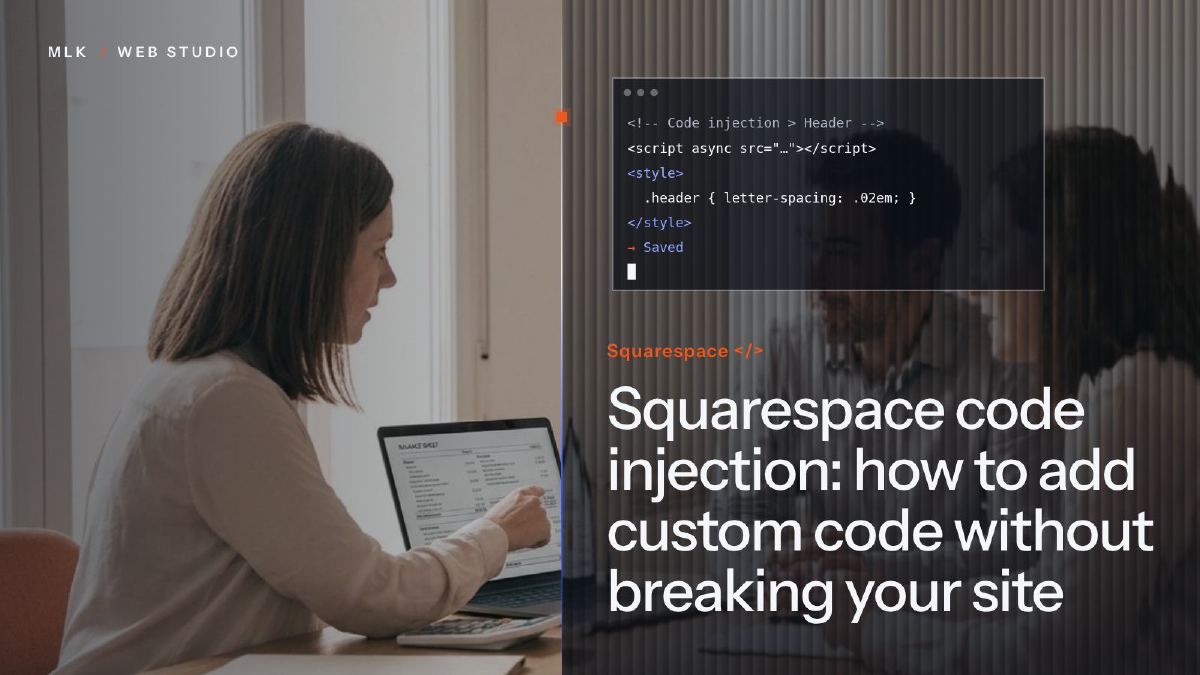 Squarespace code injection: how to add custom code without breaking your site
Squarespace code injection, step by step: where to find it, what goes in the header, footer or one page, which plans include it and how to undo a mistake.
Squarespace code injection: how to add custom code without breaking your site
Squarespace code injection, step by step: where to find it, what goes in the header, footer or one page, which plans include it and how to undo a mistake.
 Squarespace vs WordPress: an honest comparison for small business owners
Squarespace vs WordPress for a small business: editing, security, SEO and real 2026 costs compared, and why it all comes down to who will edit the site.
Squarespace vs WordPress: an honest comparison for small business owners
Squarespace vs WordPress for a small business: editing, security, SEO and real 2026 costs compared, and why it all comes down to who will edit the site.