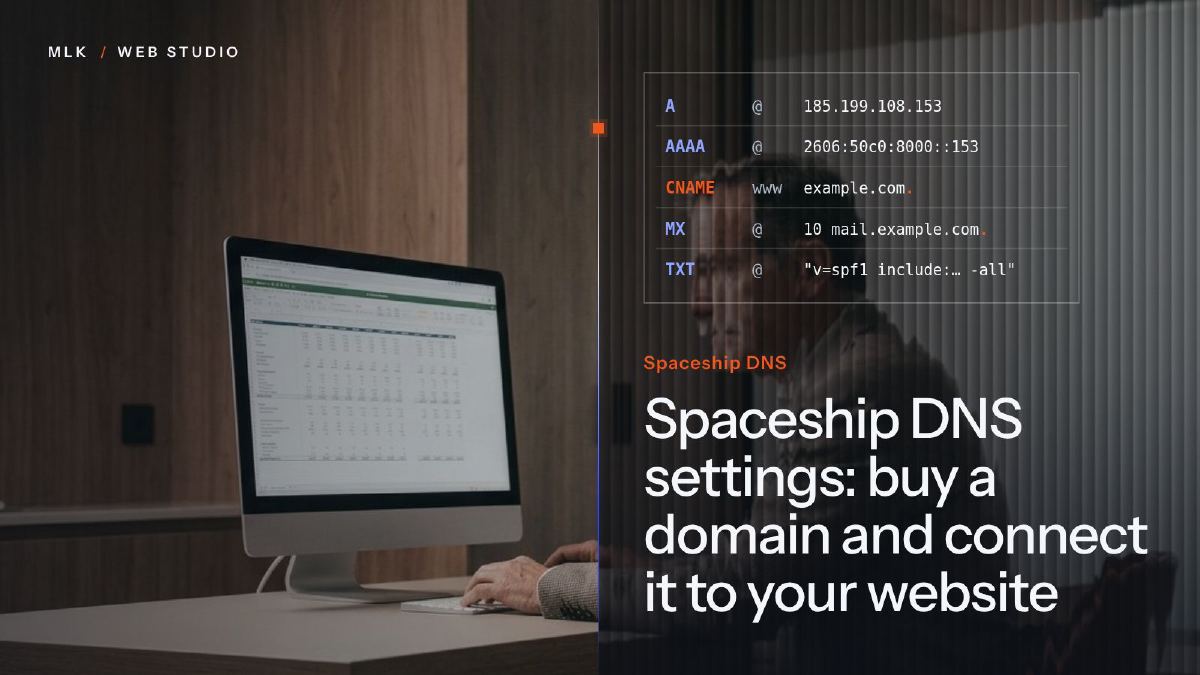
Spaceship DNS settings: buy a domain and connect it to your website
Spaceship DNS settings step by step: buy the domain, open Advanced DNS, add Squarespace's records, then redirect a second domain without losing your email.
Buy the domain on Spaceship (search, keep the free WHOIS privacy, switch on auto-renew, pay), then open Advanced DNS, the page that holds your Spaceship DNS settings. Keep Spaceship’s nameservers, delete what an old site or a parking page left on @ and www, and add your platform’s records: for Squarespace, four A records on @, a www CNAME to ext-cust.squarespace.com and a verification CNAME. Leave the MX and email TXT records alone.
Your Spaceship DNS settings all sit on one page, Advanced DNS, and connecting a new domain to a website takes a handful of records there. This tutorial covers the whole journey: buying the domain on Spaceship, then pointing it to a Squarespace site without touching your email.
Out of habit, I work mostly with Spaceship. It was built by Namecheap, and I trust both. I find the set-up easy, or at least I know my way around it, and connecting the domain is always the last thing I do before a client’s site goes live. Squarespace is the worked example, but the method is the same for any platform: only the values change.
Below: two steps to buy the domain, six to connect it, then a permanent redirect for a second domain (a .co.uk pointing to your .com) that keeps every mail record. Menu names are Spaceship’s and Squarespace’s at the time of writing (October 2026); if a label moves, the records stay the same. If the difference between a domain, hosting and email is still fuzzy, start with my guide to domain vs hosting vs email.
What your Spaceship DNS settings control: nameservers and records
Two settings decide where your domain leads, and they are easy to mix up:
- The nameservers say which company hosts your domain’s DNS. A domain bought at Spaceship normally uses Spaceship’s own.
- The DNS records are the lines of the domain’s DNS zone: A records for the website’s address, CNAMEs for aliases such as www, MX for email, and TXT for SPF, DKIM, DMARC and ownership codes.
For a domain registered at Spaceship, the Squarespace connection works through records, so you keep Spaceship’s nameservers and only add records. Changing nameservers is a different operation: it moves the whole zone to another company, and every record you do not recreate there disappears, the MX records included. That is how a business loses its email overnight. For what each record type does, see DNS records explained.
Here is what Squarespace needs, from its help page on third-party domains; if the values in your own site’s DNS settings ever differ, they win.
| Type | Host | Value | What it does |
|---|---|---|---|
| A | @ | 198.185.159.144 | Sends yourdomain.com to Squarespace |
| A | @ | 198.185.159.145 | Same, second address |
| A | @ | 198.49.23.144 | Same, third address |
| A | @ | 198.49.23.145 | Same, fourth address |
| CNAME | www | ext-cust.squarespace.com | Sends www.yourdomain.com to Squarespace |
| CNAME | your unique code | verify.squarespace.com | Proves to Squarespace that the domain is yours |
Step 1: search for your domain on Spaceship
On spaceship.com, type the name you want in the search box. The results list the extensions still available for that name, each with its price. Two choices to make here:
- The extension. A .co.uk tells visitors you trade in the UK; a .com suits a business that sells beyond it. Many businesses take both and redirect one to the other: the section after step 8 shows how.
- The renewal price. Look at what the domain costs in year two, not only in year one, which a promotion can lower. At the time of writing (October 2026), Spaceship’s domains page lists a .co.uk at $5.42 a year (about £4), renewals included. In my experience Spaceship’s prices are fair, and its renewals do not jump the way I have seen at some other registrars.
Add the domain to your cart. Already own one at another registrar? You can follow the DNS part of this tutorial wherever the domain is registered, as long as you edit the records where its nameservers point. If you would rather have everything at Spaceship, here is how to transfer a domain name, and my comparison of Spaceship vs Namecheap explains why these are the two registrars I trust.
Step 2: check privacy and auto-renew, then pay
Before you pay, or right after in the domain’s settings, check three things:
- WHOIS privacy. Spaceship provides it free of charge on every eligible domain, through a provider it selects. Leave it on, so your name, address and phone number stay out of public lookups.
- Auto-renew. Switch it on. A domain that expires takes your website and your email down with it, and getting it back can cost more than renewing on time.
- The registrant. Register the domain in the name of the business that will use it (or yours, if you trade alone), with an email address you actually read.
Then create your Spaceship account, or sign in, and pay. Protect the account with two-factor authentication: whoever controls this login controls your website and your email.
If Spaceship asks you to confirm your contact email after the purchase, do it straight away: for a .com and the other generic extensions, ICANN’s rules let a registrar suspend a domain whose contact details have not been verified.
Step 3: start the connection in Squarespace
Start on the Squarespace side, because the verification code only appears once the connection has begun.
- In your Squarespace site, open the Domains panel and choose Use a domain I own.
- Type your domain without www and confirm.
- Pick Spaceship in the list of providers if it appears there, or Other if it does not. If Squarespace offers to connect through nameservers, choose the option to use DNS records instead: your zone, and your email with it, stay at Spaceship.
- Squarespace opens the domain’s DNS settings with the records to add. Keep this tab open: you will copy values from it.
Squarespace is where I put the clients who edit their own site, because changing a word should never bring the whole structure down. If your site is not built yet, my Squarespace tutorial covers that part.
Step 4: open Advanced DNS and check the nameservers
Sign in to Spaceship, open Advanced DNS and pick your domain. The page brings together the domain’s nameservers, its DNS records and DNSSEC, plus a propagation checker you will use in step 8.
Read the nameservers first. If they are Spaceship’s own, normally the case for a domain you have just bought there, this page holds the zone the internet reads. If they belong to someone else (Cloudflare, a web host, a former agency), the records here are ignored: add the Squarespace records wherever the nameservers point instead.
Leave DNSSEC as it is. If you change nameservers one day, switch it off first: signatures that no longer match make the domain unreachable for every resolver that checks them.
Step 5: clear the records that clash with Squarespace
Look through the records for anything on @ (the root of the domain) or www: a parking page, a redirect, an old website.
| What you find | What to do |
|---|---|
An A record on @ that is not one of Squarespace’s four | Delete it |
An AAAA record on @ | Delete it: Squarespace uses no AAAA, so one left there sends some visitors elsewhere |
An A, AAAA or TXT record on www | Delete it: a CNAME cannot share its name with any other record |
A CNAME on www | Keep it and change its value in step 7 |
| A URL redirect set on the domain | Remove it: a redirect and Squarespace cannot both answer for the same address |
MX, the TXT on @ starting with v=spf1, DKIM (._domainkey), _dmarc | Keep them: they run your email |
On a domain bought today, the list may be short. On an older one, take your time: the only lines you touch are on @ and www, and only those that serve the website.
Step 6: add Squarespace’s four A records
Under DNS records, go to Custom records, choose A from the list of record types and fill in:
- Host:
@(the root of the domain) - Value:
198.185.159.144 - TTL: leave the default
Click Add, then repeat for the other three addresses. At the end, the root carries exactly these four lines and no other A or AAAA record:
A   @   198.185.159.144
A   @   198.185.159.145
A   @   198.49.23.144
A   @   198.49.23.145
Field names vary a little between panels (Host or Name, Value or Points to); what you type is what counts. Spaceship’s help page on DNS records describes each type and how to add it.
Why four A records rather than a CNAME on the root? Because the root always carries other records (the zone’s own SOA and NS records, plus your MX and TXT), and a CNAME cannot share its name with any other record.
Step 7: add the www and verification CNAMEs
Back in Custom records, choose CNAME this time:
- Host:
www - Value:
ext-cust.squarespace.com
Click Add, then create the verification record, also a CNAME:
- Host: the code from Squarespace, alone. The panel adds your domain after it, so do not paste
code.yourdomain.com. - Value:
verify.squarespace.com
Squarespace warns that without the verification record, or with a mistake in it, the domain is unlinked from your site after 15 days.
Some DNS panels produce that longer name when a target is typed without its final dot. It is the only real issue I have hit when connecting domains, on OVH, and my tutorial to connect an OVH domain to Squarespace shows the trap in detail.
Step 8: check propagation and the connection
Now the waiting. Squarespace’s estimate is 24 to 48 hours, up to 72 in some cases, and right after you add the records its DNS settings may still show them as not found: that is normal. In Advanced DNS, Spaceship’s propagation checker shows how far a change has spread, as a percentage, so you can follow progress without refreshing Squarespace every five minutes.
To check from your own computer, use a terminal or the free Dig tool in Google’s Admin Toolbox. The four addresses can come back in any order:
$ dig +short www.yourdomain.com CNAME
ext-cust.squarespace.com.

$ dig +short yourdomain.com A
198.185.159.144
198.185.159.145
198.49.23.144
198.49.23.145
The dot at the end of the first answer is expected: dig always prints full names that way. On Windows, nslookup -type=CNAME www.yourdomain.com gives the same information. Once the domain is linked, a green Connected label appears next to it in Squarespace’s Domains panel.
Redirect a second domain without breaking your email
Say your site runs on yourbrand.com and you also bought yourbrand.co.uk to protect the name. A 301 redirect sends everyone who types the second domain to the first, and tells search engines the move is permanent.
Spaceship handles this with a free URL redirect that works over HTTPS, which matters: a redirect that only works on http:// shows a certificate warning to anyone who types https://. One condition, set out in Spaceship’s announcement: a new redirect only works when the domain uses Spaceship’s nameservers.
- In Advanced DNS for the second domain, delete the web records an old site may have left on
@andwww(A, AAAA, CNAME), and nothing else. AAAA lines are the easiest to miss, and any leftover sends some visitors to the old site instead of the redirect. - In your Domain List, select the second domain and click URL redirect in the side panel (you can also set it up from Connections).
- Enter the full destination, with https://, for example
https://yourbrand.com. - As the redirect type, choose 301 (permanent), not Masked, then click Save. A masked redirect shows your site inside a frame under the second domain’s address, and search engines do not treat it as a move.
A redirect only concerns the web records. If addresses on the second domain receive email, keep every mail record: MX, the SPF TXT on @, DKIM under ._domainkey, _dmarc, and any autoconfig or autodiscover records. Then test the four addresses (http and https, with and without www) and send yourself an email at the second domain to confirm it still arrives.
Spaceship does not say whether a redirect covers www as well as the root, so if the www addresses fail, ask its support before adding records by hand.
Not on Squarespace? The same steps with other values
Keep Spaceship’s nameservers, clear @ and www, then add what your platform asks for:
| Your website | Root (@) | www | Before you start |
|---|---|---|---|
| GitHub Pages | Four A records, 185.199.108.153 to 185.199.111.153 | CNAME <username>.github.io | Add the domain in GitHub first; never a wildcard record |
| Another host | The A record(s) its help gives | Usually a CNAME | If it asks you to change nameservers, recreate your mail records there first |
This site, for instance, is hosted on GitHub Pages. If you also want email on the domain, my Spacemail setup tutorial lists the mail records to add on the same Advanced DNS page. I used to run email on Microsoft and it was a pain; with Spaceship, it was not.
Still not connected after 48 hours?
| What you see | Likely cause | Fix |
|---|---|---|
| Squarespace never validates the www record | The value reads ext-cust.squarespace.com.yourdomain.com, or has a typo | Edit it so it reads ext-cust.squarespace.com, with a final dot if your domain keeps coming back |
| Squarespace cannot verify the domain | The verification host contains the full domain, or the code has a typo | Paste the code again, alone, as the host |
| The root sometimes shows a parking page or an old site | An A, AAAA or redirect left on @ | Keep only Squarespace’s four A records on @ |
| You cannot save the www CNAME | Another record still uses www | Delete that record first |
| Nothing changes at all | The domain does not use Spaceship’s nameservers | Edit the records where the nameservers point |
| Email stops arriving | An MX or SPF record was deleted, or the nameservers changed | Restore it from your copy of the records |
If none of these fits, compare your records line by line with Squarespace’s DNS settings: they flag each record Squarespace cannot find. If you are stuck on the Spaceship side, its support is there 24/7, and in my experience every issue I have taken to them has been resolved.
Once it shows Connected: your checklist
- Open the site with and without www: both addresses should lead to your Squarespace site.
- In Squarespace’s Domains panel, make this domain the primary one: the address visitors see in their browser.
- If you have email on the domain, send a message to one of its addresses and reply to it.
- Check that auto-renew is still on and that the card on file will still be valid at renewal time.
- Keep your copy of the old records for a few weeks, just in case.
And if you would rather not touch DNS at all, connecting the domain is part of every website I deliver.
Frequently asked questions
Does connecting a Spaceship domain to Squarespace move the domain to Squarespace?
Can I point a subdomain of my Spaceship domain to another service?
Can I buy a domain on Spaceship without hosting or email?
Does Spaceship charge for DNS or URL redirects?
Joana MehouWeb designer, SEO and cold emailing specialist
Joana Mehou has been building websites since the age of eleven and founded MLK Web Studio in 2021, between London and Paris: websites, SEO, cold emailing and automation for small businesses in the UK and France, with honest advice, including when you do not need to hire anyone.
More about the studioA website that brings in clients, designed, written and built for you.
 Spaceship vs Namecheap: same founder, which registrar should you choose?
Spaceship vs Namecheap: two registrars from the same founder, compared on renewals, WHOIS privacy, DNS, email and hosting, with the one I use and why.
Spaceship vs Namecheap: same founder, which registrar should you choose?
Spaceship vs Namecheap: two registrars from the same founder, compared on renewals, WHOIS privacy, DNS, email and hosting, with the one I use and why.
 Spacemail setup: mailbox, DNS records and email app settings, step by step
Spacemail setup step by step: choose a plan, create the mailbox, add the MX, SPF, DKIM and DMARC records, then connect your phone, Outlook or Apple Mail.
Spacemail setup: mailbox, DNS records and email app settings, step by step
Spacemail setup step by step: choose a plan, create the mailbox, add the MX, SPF, DKIM and DMARC records, then connect your phone, Outlook or Apple Mail.
 DNS records explained: A, AAAA, CNAME, MX, TXT and the trailing dot
DNS records explained in plain English: what A, AAAA, CNAME, MX and TXT records do, real examples, TTL, propagation and the trailing dot that breaks a CNAME.
DNS records explained: A, AAAA, CNAME, MX, TXT and the trailing dot
DNS records explained in plain English: what A, AAAA, CNAME, MX and TXT records do, real examples, TTL, propagation and the trailing dot that breaks a CNAME.