Emails going to spam? How to set up SPF, DKIM and DMARC, step by step
Emails going to spam? Set up SPF, DKIM and DMARC step by step: check Gmail's Show original, add records at Spaceship, Namecheap or OVH, then tighten DMARC.
To stop emails going to spam, set up SPF, DKIM and DMARC on your domain: one SPF record on the root listing every service that sends as you, a DKIM key generated by your email provider and published at selector._domainkey, and a DMARC record at _dmarc that starts at p=none with a report address. Check the result with Gmail’s Show original, then move DMARC to quarantine and reject once the reports are clean.
When your emails land in spam, or a client never receives a quote you know you sent, check first whether your domain proves that it sent them. Three DNS records do that job. This tutorial shows how to set up SPF, DKIM and DMARC step by step: see what Gmail sees, add the records where your domain’s DNS lives (with Spaceship, Namecheap and OVH examples), then tighten DMARC so that receivers refuse emails that only pretend to come from you.
Email set-up is one of the fixed-price jobs I take on, and I have worked with domains registered at Namecheap, Spaceship, Infomaniak, Hostinger, OVH and the old Google Domains. The records are short. The care goes into finding every service that sends as you and, at OVH, into one dot at the end of a line.
For the theory, MLK Leadhunters has SPF, DKIM and DMARC explained in plain English. This page is the hands-on part.
Why emails go to spam, and what SPF, DKIM and DMARC fix
Before a receiving server weighs your words, it checks whether the email really comes from the domain in the From line. Each record answers part of that question:
| Record | Where it lives | What it does |
|---|---|---|
| SPF | TXT record on the root of the domain | Lists the servers allowed to send its email |
| DKIM | TXT or CNAME record at selector._domainkey | Publishes the key that checks the signature your provider adds to each email |
| DMARC | TXT record at _dmarc | Says what to do with emails that fail, and where to send reports |
They prove who you are. They do not rescue an email that reads like spam, or one sent to people who never asked for it.
The big mailbox providers now insist on them. Since February 2024, Google’s email sender guidelines have required everyone sending to Gmail addresses to pass SPF or DKIM and to keep the share of their emails that Gmail users mark as spam below 0.1%, never reaching 0.3%. Senders of about 5,000 or more messages a day must also have all three records, aligned with the From domain; Yahoo brought in similar rules at the same time. Google says Gmail has been ramping up enforcement since November 2025, with temporary and permanent rejections. Outlook.com has required the three records from domains sending it 5,000 or more messages a day since 5 May 2025. If you send a newsletter, my guide to newsletter deliverability covers the rest of these rules, one-click unsubscribe included.
Step 1: check what Gmail sees with “Show original”
- From your business address, send a short email to a personal Gmail address.
- Open it in Gmail on a computer, click the three-dot menu next to the Reply arrow, then Show original.
- Read the lines at the top of the page. This is the goal:
SPF:    PASS with IP 203.0.113.25
DKIM:   'PASS' with domain yourbusiness.co.uk
DMARC:  'PASS'
Anything else points to the step that fixes it:
| What you see | What it usually means | Fix |
|---|---|---|
| SPF other than PASS | No SPF record, a broken one, or a sending server missing from it | Step 4 |
| No DKIM, or PASS with another domain | DKIM is off for your domain, so your provider signs with its own (a domain ending in gappssmtp.com at Google Workspace) | Step 5 |
| DMARC FAIL, or no DMARC line | No DMARC record, or neither SPF nor DKIM passed for your own domain | Steps 4 to 6 |
Step 2: list every service that sends email as you
SPF and DKIM must cover everything that puts your address in the From line, not only your mailbox:
- Your mailbox provider: Google Workspace, Microsoft 365, Spacemail, OVHcloud, Namecheap’s Private Email or another. If you have no mailbox on your own domain yet, my guide to getting a professional email address compares the options.
- Tools that email clients in your name: invoicing, accounting, booking, an online shop.
- Marketing tools: your newsletter service and your CRM.
- Your website, if its forms send from your address.
For each tool, find the settings page usually called domain or sender authentication: most give you DKIM records to add, often CNAMEs. Many tools send with their own return address, so their SPF include would not help DMARC anyway; their DKIM on your domain is what counts. Send a test from each tool to Gmail and read its Show original too.
Step 3: open your DNS zone at Spaceship, Namecheap or OVH
The records go wherever your domain’s DNS is hosted: usually the registrar, unless the nameservers point elsewhere, such as Cloudflare or a former agency’s account. My guide to DNS records shows how to check, and domain vs hosting vs email untangles the three if they blur together.
| DNS host | Where the records are | Root of the domain | To add a record |
|---|---|---|---|
| Spaceship | Advanced DNS > DNS records > Custom records | @ | Choose the type, fill in the fields, Add |
| Namecheap | Domain List > Manage > Advanced DNS | @ | Add New Record under Host Records |
| OVHcloud | Web Cloud > Domain names > your domain > DNS zone | Empty sub-domain | Add an entry |
Type host names without your domain: _dmarc, not _dmarc.yourbusiness.co.uk, or some panels create _dmarc.yourbusiness.co.uk.yourbusiness.co.uk. Out of habit I use Spaceship, and my Spaceship DNS tutorial walks through its Advanced DNS page.
Step 4: set up SPF, one record per domain
SPF is a TXT record on the root that lists who may send your domain’s email. Each provider gives you an include:
| Mailbox provider | Include for your SPF record |
|---|---|
| Google Workspace | include:_spf.google.com |
| Microsoft 365 | include:spf.protection.outlook.com |
| Spacemail | include:spf.spacemail.com |
| OVHcloud email | include:mx.ovh.com |
Every sender goes into one record:
; wrong: two SPF records, so SPF fails
@   TXT   "v=spf1 include:_spf.google.com ~all"
@   TXT   "v=spf1 include:<your other tool> ~all"

; right: one record naming both
@   TXT   "v=spf1 include:_spf.google.com include:<your other tool> ~all"
Three rules keep it working:
- One SPF record per domain. Under RFC 7208, two records make SPF fail, so merge each new include into the existing record.
- Ten DNS lookups at most. Each
include,aandmxcounts, including the includes nested inside a provider’s include. Past ten, SPF returns an error that counts as a failure: remove services you have left. - The ending.
~allasks receivers to treat mail from unlisted servers as suspicious,-allto refuse it. Google’s own example uses~all, and OVHcloud recommends-all. Keep~allwhile you are still finding senders, and let DMARC do the enforcing.
At Namecheap, for example: Domain List, Manage next to the domain, then the Advanced DNS tab. Under Host Records, click Add New Record, choose TXT Record, enter @ as the host, paste the value and save.
Step 5: set up DKIM with your email provider
DKIM signs each email with a private key that stays with your provider; receivers check the signature against a public key published at selector._domainkey. You generate the key at the provider, publish it in your DNS, then switch signing on.
- Google Workspace. In the Admin console, open Apps > Google Workspace > Gmail > Authenticate email, pick the domain and click Generate new record. Publish the TXT record at
google._domainkey, then come back and click Start authentication. Google recommends a 2048-bit key, and its DKIM help covers DNS hosts that only accept 1024 bits. While you are in the Admin console, my guide to securing Google Workspace and Microsoft 365 lists the other settings worth changing. - Microsoft 365. The DKIM settings in the Microsoft Defender portal give two CNAME records,
selector1._domainkeyandselector2._domainkey. Add both, then switch signing on there. I used to run my own email on Microsoft and found it a pain, so allow some patience. - Spacemail. On Spaceship’s nameservers, check in Advanced DNS that
spacemail._domainkeyis there. With another DNS host, copy the record from Spaceship’s Advanced DNS (Inactive records > Spacemail DNS records), as my Spacemail setup tutorial shows. - OVHcloud email uses CNAME records for DKIM, like Microsoft 365.
A 2048-bit key is longer than 255 characters, the limit for one string in a TXT record, so it is stored as several strings in one record. Some panels split it for you; if yours rejects the value, check its help on long TXT records.
At OVH, DKIM CNAMEs need one more character:
selector1._domainkey   CNAME   <target given by Microsoft>.
selector2._domainkey   CNAME   <target given by Microsoft>.
Step 6: set up DMARC, starting with p=none
DMARC passes when SPF or DKIM passes for the same domain as your From address, a match called alignment. It also tells receivers what to do when neither passes, and where to send reports. It is one TXT record named _dmarc, and the first version watches without blocking anything:
_dmarc TXT "v=DMARC1; p=none; rua=mailto:dmarc@yourbusiness.co.uk"
p=noneasks for reports only, and already meets the Gmail, Yahoo and Outlook.com rules for large senders.rua=is where the daily summary reports go. Give them their own mailbox or alias: they arrive as zipped XML attachments. An address on another domain, such as a report service’s, must be authorised by that domain, which report services handle for you.
Keep one _dmarc record per domain. Your provider may not create it: Spacemail, for one, does not. At OVH, the DMARC entry type works, but a TXT record on the _dmarc sub-domain accepts every tag.
Step 7: test the three records
Records can take a few hours to show everywhere. Then ask the DNS directly from a terminal on a Mac or Linux, with your provider’s selector instead of google:
dig +short TXT yourbusiness.co.uk
dig +short TXT google._domainkey.yourbusiness.co.uk
dig +short TXT _dmarc.yourbusiness.co.uk
On Windows, nslookup -type=TXT _dmarc.yourbusiness.co.uk does the same, and Google’s Admin Toolbox has a Dig page for any browser. For a DKIM set up with CNAMEs, ask for CNAME instead of TXT.
Then send a fresh email to Gmail and open Show original again: PASS on all three lines, with your own domain on the DKIM line. Repeat for each tool from step 2.
Step 8: read the reports, then move to quarantine and reject
With p=none, nothing is blocked; the reports tell you when it is safe to change that. Each one lists the servers that sent email as your domain, how many messages each sent and whether SPF and DKIM passed:
<row>
  <source_ip>203.0.113.25</source_ip>
  <count>42</count>
  <policy_evaluated>
    <disposition>none</disposition>
    <dkim>pass</dkim>
    <spf>pass</spf>
  </policy_evaluated>
</row>
A DMARC report service turns these files into readable tables. Look for three things:
- One of your services failing: set up its DKIM (step 5) or add it to SPF (step 4).
- Forwarded emails failing SPF: expected, since the forwarding server is not in your record. DKIM usually survives forwarding, so DMARC still passes: one more reason to have DKIM everywhere.
- Servers you do not recognise: someone is sending in your name, which the next two settings stop.
When a few weeks of reports show your own services passing, tighten the policy in two moves, a few weeks apart:
p=quarantine: receivers put failing emails in spam.p=reject: receivers that apply DMARC refuse them.
_dmarc TXT "v=DMARC1; p=reject; rua=mailto:dmarc@yourbusiness.co.uk"
Keep the rua= address after the move to reject: the reports are how you spot a new tool that nobody authenticated. Payment fraud needs more than DNS records: my guide to fake invoices and “new bank details” emails sets out the rules that stop it.
Domains that send no email, and cold email domains
An old brand name, a .co.uk that only redirects to your .com, a name bought to protect your brand: when nothing sends from a domain, nobody watches it, which suits anyone who wants to impersonate you. Close it with two records, and only where nothing sends:
@        TXT   "v=spf1 -all"
_dmarc   TXT   "v=DMARC1; p=reject"
For UK readers, the NCSC’s guidance on email security and anti-spoofing covers the same records from a security angle.
Cold email is the opposite case: secondary domains that exist only to send, never your main one, for the reasons MLK Leadhunters gives in never send cold emails from your main domain. Each secondary domain needs MX, SPF, DKIM and DMARC, and p=none meets the sender rules. The records are only the entry ticket: my campaigns are plain text, with no links and no HTML, to ensure good delivery, and stop at three emails. My guide to cold email infrastructure sizes the domains and mailboxes.
Spacemail is the provider I encourage for its easy set-up, but Spaceship’s rules forbid unsolicited bulk email and automated warm-up through third-party tools: read its policy and get its written agreement before you use Spacemail for cold email. If you would rather hand campaigns over, that is what MLK Leadhunters does.
Set up SPF, DKIM and DMARC: the checklist, and when to hand it over
- Show original on a test email to Gmail, before and after.
- A list of every service that sends as your domain.
- A copy of the DNS zone before any change.
- One SPF record, every sender in it, ten lookups at most.
- DKIM on at your provider and in each tool, with a final dot on CNAME targets at OVH.
- One DMARC record, starting at
p=none, with a report address someone reads. - A few weeks of clean reports, then quarantine, then reject.
v=spf1 -allandp=rejecton domains that send nothing.
You do not need me when one provider sends all your email: three records and some patience will do. Hand it over when several tools send as your domain and nobody knows which, when SPF is near ten lookups, when the reports show servers you cannot place, or when emails stopped arriving after a DNS change, which is the urgent kind.
Frequently asked questions
How long do SPF, DKIM and DMARC take to work?
Do I need DMARC if I only send a few emails a day?
Do SPF, DKIM and DMARC stop people from spoofing my domain?
What is BIMI, and do I need it?
Can I set up SPF, DKIM and DMARC for a free Gmail or Outlook address?
Joana MehouWeb designer, SEO and cold emailing specialist
Joana Mehou has been building websites since the age of eleven and founded MLK Web Studio in 2021, between London and Paris: websites, SEO, cold emailing and automation for small businesses in the UK and France, with honest advice, including when you do not need to hire anyone.
More about the studioHacked site, lost access, broken email: same-day answer, or within 24 hours.
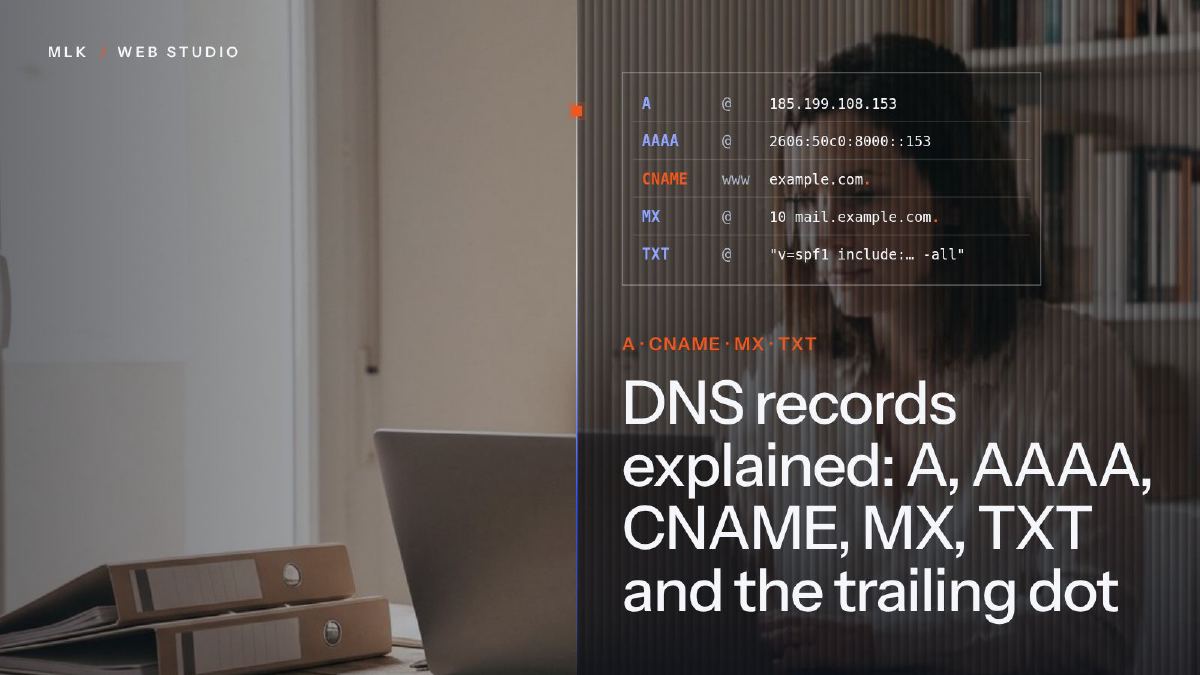 DNS records explained: A, AAAA, CNAME, MX, TXT and the trailing dot
DNS records explained in plain English: what A, AAAA, CNAME, MX and TXT records do, real examples, TTL, propagation and the trailing dot that breaks a CNAME.
DNS records explained: A, AAAA, CNAME, MX, TXT and the trailing dot
DNS records explained in plain English: what A, AAAA, CNAME, MX and TXT records do, real examples, TTL, propagation and the trailing dot that breaks a CNAME.
 How to get a professional email address with your own domain (and what it costs)
Get a professional email address on your own domain: Spacemail, Google Workspace, Microsoft 365 or kSuite, what each costs in 2026, and the set-up steps.
How to get a professional email address with your own domain (and what it costs)
Get a professional email address on your own domain: Spacemail, Google Workspace, Microsoft 365 or kSuite, what each costs in 2026, and the set-up steps.
 Cold email infrastructure: domains, mailboxes and limits (a 30-mailbox example)
Cold email infrastructure: how many secondary domains and mailboxes to buy, what each can send a day, the Gmail and Outlook rules, and a 30-mailbox example.
Cold email infrastructure: domains, mailboxes and limits (a 30-mailbox example)
Cold email infrastructure: how many secondary domains and mailboxes to buy, what each can send a day, the Gmail and Outlook rules, and a 30-mailbox example.