Robots.txt for AI crawlers: which bots to allow and which to block
Robots.txt for AI crawlers: the bots to allow so ChatGPT, Claude and Perplexity can cite you, how to refuse AI training, and three files to copy.
Allow the AI search crawlers (OAI-SearchBot for ChatGPT, Claude-SearchBot for Claude and PerplexityBot) if you want AI assistants to find and cite your business: blocking them can take you out of their answers. Training crawlers such as GPTBot and ClaudeBot are a separate choice that does not affect search. Check Cloudflare and your website builder too: both can block AI crawlers without telling you, whatever your robots.txt says.
Robots.txt rules for AI crawlers come down to one distinction: search bots versus training bots. OpenAI, Anthropic and Perplexity each run a crawler that finds pages for their assistant’s answers, and OpenAI and Anthropic run a second one that collects pages to train future models. Let the search crawlers in and ChatGPT, Claude and Perplexity can read and cite your pages. Block them and you risk dropping out of their answers. Blocking the training crawlers is a separate decision, with no effect on search.
The catch is that plenty of sites block AI crawlers without their owners knowing: a Cloudflare setting switched on by default, a box ticked in a website builder, a plugin that writes its own rules.
This tutorial is part of my complete guide to generative engine optimisation, which covers everything else that decides whether AI assistants mention your business.
What robots.txt does, and what it cannot do
Robots.txt is a plain-text file at the root of a website (yourdomain.co.uk/robots.txt) that tells crawlers which parts of the site they may visit. Each group of rules starts with one or more User-agent lines naming the bots it applies to, followed by Disallow and Allow lines listing paths. The * stands for every bot not named elsewhere in the file.
User-agent: GPTBot
Disallow: /

User-agent: *
Allow: /

Sitemap: https://www.yourdomain.co.uk/sitemap.xml
This file asks GPTBot to stay out of the whole site and lets every other crawler in. The Sitemap line gives the address of your sitemap, which helps search engines find your pages.
Three rules catch people out:
- A bot that has its own group ignores the
*group. If you write a group for GPTBot, the rules underUser-agent: *no longer apply to it, so repeat there any rule it should follow. - Each domain and subdomain needs its own file. The robots.txt on www.yourdomain.co.uk does not cover shop.yourdomain.co.uk.
- It is a request, not a lock. Well-behaved crawlers follow it, but nothing forces them to. In August 2025, Cloudflare accused Perplexity of using undeclared crawlers on sites that had blocked it, which Perplexity disputes. The file is also public, so never list private folders in it: you would be pointing straight at them.
Robots.txt controls crawling, not indexing. A rule that blocks Googlebot by mistake is a classic reason a new site never shows up, and my guide on how to get your website on Google covers the other usual suspects. Don’t confuse it with llms.txt either: that newer file summarises your site for AI tools but lets no one in or out, as I explain in my guide to llms.txt.
Search, training and user fetchers: the three kinds of AI crawler
Most AI companies now split their crawlers by job:
- Search crawlers build the index an assistant searches when it answers. Block one and your pages can drop out of that assistant’s answers.
- Training crawlers collect pages to train future models. Block one and your pages stay out of future training, with no effect on search.
- User fetchers open a page when someone asks the assistant to, for example by pasting a link into the chat.
| Company | Search crawler | Training crawler | User fetcher |
|---|---|---|---|
| OpenAI (ChatGPT) | OAI-SearchBot | GPTBot | ChatGPT-User |
| Anthropic (Claude) | Claude-SearchBot | ClaudeBot | Claude-User |
| Perplexity | PerplexityBot | none | Perplexity-User |
| Google (Search, Gemini) | Googlebot | Google-Extended (a token, not a crawler) | not covered here |
OpenAI: OAI-SearchBot, GPTBot and ChatGPT-User
OpenAI’s crawler documentation is the clearest of the lot. OAI-SearchBot decides whether your pages can appear in ChatGPT’s search answers: OpenAI says a site that blocks it is left out of them, apart from plain navigational links. GPTBot collects pages that may be used to train its models. The two are independent: you can allow one and block the other.
ChatGPT-User visits a page when a user’s request needs it. Since December 2025, OpenAI’s documentation says that because these visits are started by a user, robots.txt rules may not apply, and that ChatGPT-User plays no part in deciding what appears in search. OpenAI adds one condition for search: your host or CDN must accept traffic from the IP addresses it publishes for OAI-SearchBot.
Anthropic: Claude-SearchBot, ClaudeBot and Claude-User
Anthropic runs the same three jobs under its own names, according to its help article on crawling. Claude-SearchBot indexes pages for Claude’s search answers, ClaudeBot collects pages for training, and Claude-User fetches a page when a Claude user’s question needs it. Anthropic says all three respect robots.txt, and that blocking Claude-SearchBot or Claude-User may reduce your site’s visibility in Claude’s answers. It also warns that blocking by IP address is not a reliable way to opt out: robots.txt is the way.
Perplexity: PerplexityBot and Perplexity-User
PerplexityBot builds the index behind Perplexity’s answers, and Perplexity says it is not used to train AI models (Perplexity’s crawler page). Perplexity-User fetches pages when a user asks, and Perplexity says it generally ignores robots.txt, since a person requested the page.
Google: Googlebot and Google-Extended
Google works differently. AI Overviews and AI Mode draw on the normal search index, which Googlebot builds, so blocking Googlebot takes you out of Google altogether. Google-Extended is not a crawler but a token you name in robots.txt. It controls whether Google may use your content to train its Gemini models and to ground answers in the Gemini app and Vertex AI, and it has no effect on Google Search, AI Overviews included. To leave AI Overviews and AI Mode, the tool is the Search generative AI setting in Search Console (it may not have reached your property yet), which my guide to Google AI Overviews and AI Mode covers.
Other names you will come across
Of the dozens of other names, four are worth knowing:
- Bingbot crawls for Bing, and Bing Webmaster Tools reports when Microsoft Copilot cites your pages. Treat it like Googlebot.
- CCBot belongs to Common Crawl, a non-profit whose open archive of the web feeds many AI training datasets. It respects robots.txt.
- Applebot-Extended is a token like Google-Extended. It lets you refuse the use of your pages to train Apple’s models, while Applebot itself keeps crawling for Siri and Spotlight.
- Meta-ExternalAgent is Meta’s crawler for uses such as training its AI models. Don’t confuse it with facebookexternalhit, which builds the preview when someone shares your link on Facebook: block that one and your shared links lose their image and title.
Which AI crawlers should a small business allow?
For almost every small business, my answer is all of them: AI assistants have become one more place where customers look. Here is how I sort them:
- Search crawlers: allow. OAI-SearchBot, Claude-SearchBot, PerplexityBot, Googlebot and Bingbot are how assistants and search engines find you. Blocking one is like taking your number out of a directory your customers still use.
- User fetchers: allow. They only come when someone asks about you or pastes your link, which is exactly the person you want to reach.
- Training crawlers: your call. GPTBot, ClaudeBot, Google-Extended, Applebot-Extended, CCBot and Meta-ExternalAgent feed future models. My own site lets them in. The argument for doing the same: what a model learned in training is part of what it knows about a business when it answers without searching. Refusing them is a fair choice if your content is what you sell: a photographer’s portfolio, an illustrator’s work, paid articles or an online course.
Robots.txt is only the first step. For the rest of what ChatGPT needs before it names a business, such as clear service pages and mentions on other sites, see my guide on how to get recommended by ChatGPT.
Robots.txt for AI crawlers: three files to copy
Replace yourdomain.co.uk with your own domain, and keep the Sitemap line only if that address opens your sitemap.
File 1: open to every crawler (my choice)
User-agent: *
Allow: /

Sitemap: https://www.yourdomain.co.uk/sitemap.xml
Apart from the address, this is the file mlkwebstudio.com uses: every crawler is welcome, AI or not.
File 2: AI search allowed, AI training refused
User-agent: GPTBot
User-agent: ClaudeBot
User-agent: Google-Extended
User-agent: Applebot-Extended
User-agent: CCBot
User-agent: Meta-ExternalAgent
Disallow: /

User-agent: *
Allow: /

Sitemap: https://www.yourdomain.co.uk/sitemap.xml
The first group refuses the training crawlers and tokens: several User-agent lines can share one set of rules. The * group lets everyone else in, AI search crawlers included, so ChatGPT, Claude and Perplexity can still find and cite you while your pages stay out of future training, at least with the companies that respect the file. One trade-off: because Google-Extended also covers grounding, refusing it stops the Gemini app drawing on your pages for its answers. If Gemini matters to your customers, delete that line.
File 3: every AI crawler refused
User-agent: OAI-SearchBot
User-agent: ChatGPT-User
User-agent: GPTBot
User-agent: Claude-SearchBot
User-agent: Claude-User
User-agent: ClaudeBot
User-agent: PerplexityBot
User-agent: Perplexity-User
User-agent: Google-Extended
User-agent: Applebot-Extended
User-agent: CCBot
User-agent: Meta-ExternalAgent
Disallow: /

User-agent: *
Allow: /

Sitemap: https://www.yourdomain.co.uk/sitemap.xml
Know the cost before you use it: you largely drop out of the answers of ChatGPT, Claude and Perplexity, while Google’s AI Overviews can still show you, because they depend on Googlebot. ChatGPT-User and Perplexity-User may also keep coming when a user asks, since their makers say robots.txt may not apply to them.
How to check and change your robots.txt, step by step
Step 1: read the file you have now
Open yourdomain.co.uk/robots.txt in a private browser window and look for three things:
Disallow: /underUser-agent: *, which shuts out every crawler.- A search crawler (OAI-SearchBot, Claude-SearchBot or PerplexityBot) followed by
Disallow: /. - Lines you did not write, such as a list of AI bots added by your platform, a plugin or Cloudflare. A name alone blocks nothing: what counts is the
Disallowline under it.
A “page not found” (404) error means there is no file, so nothing is blocked. A server error (500 or 503) is worse: Google then treats the whole site as temporarily blocked, so ask your host to fix it.
Step 2: on Squarespace, check the Crawlers panel
Squarespace writes the file for you and does not let you edit it. What you control is the Crawlers panel, under Settings:
- Block known artificial intelligence crawlers asks the AI crawlers on Squarespace’s list to stay away. It is off by default. You cannot choose which bots it covers, so leave it off if you want AI assistants to cite you.
- Block search engine crawlers shuts out Google too. Never tick it on a site that needs customers.
I put clients who run their own site on Squarespace because they can change it whenever they want, without the whole structure falling apart. The flip side is that anyone with access can tick a box like this one, so check it once in a while. My Squarespace SEO tutorial lists the other settings worth checking.
Step 3: on WordPress, find what writes the file
WordPress serves a basic robots.txt of its own until a real file is placed at the root of the site, and SEO plugins such as Yoast SEO include an editor for it. Security plugins and “AI blocker” plugins can add rules of their own, so if the file holds lines you did not write, look at your plugins first. The more plugins a site has, the more places a setting can hide, which is one reason I steer owners who run their own site towards simpler platforms.
Step 4: on a hand-coded site, shared hosting or Hugo
Save a plain-text file named robots.txt at the root of the folder you publish, next to your home page’s index.html. On shared hosting, upload it with the host’s file manager or by FTP to the site’s root folder, often called public_html or www. On Hugo, which runs this site, set enableRobotsTXT = true in the configuration and write your rules in a layouts/robots.txt template. End it with Sitemap: {{ "sitemap.xml" | absURL }}, as this site does, and Hugo writes the full sitemap address at every build.
Step 5: on Cloudflare, check the AI crawler settings
If your site runs through Cloudflare’s proxy (the orange cloud in its DNS settings), Cloudflare can block AI crawlers before they even read your robots.txt. Since 1 July 2025, Cloudflare has blocked known AI crawlers by default on newly added domains, asking at setup whether to allow them, and an older site can have the block switched on in one click.
Open your domain in the Cloudflare dashboard and go to AI Crawl Control. It lists the AI crawlers that visit your site, how often they come and whether they respect your robots.txt, and lets you allow or block each one (Cloudflare’s documentation). Check that OAI-SearchBot, Claude-SearchBot and PerplexityBot are allowed.
If you switch on Cloudflare’s managed robots.txt, it adds lines to your file: rules asking known AI crawlers to stay away, and a content signal such as Content-Signal: search=yes, ai-train=no, which says your pages may be used for search but not for training. These are requests too.
Step 6: make sure your text is in the HTML
Robots.txt is not the only thing that can hide your pages. GPTBot, ClaudeBot and PerplexityBot do not run JavaScript, unlike Googlebot, so text that only appears once scripts have run can look empty to them. Open one of your pages, right-click and choose View page source (Ctrl+U on Windows). If your services, towns and phone number are not in that source, AI crawlers probably cannot read them either.
How to test your robots.txt after a change
- Reload yourdomain.co.uk/robots.txt in a private window to check that the new version is live. Platforms and CDNs sometimes serve the old one for a while.
- In Google Search Console, open Settings, then the robots.txt report. It shows the version Google last fetched and flags any errors.
- Run the URL Inspection tool on your home page and one service page, then click Test live URL: the result tells you whether Googlebot may crawl them.
- On Cloudflare, come back to AI Crawl Control a few days later to see which AI crawlers have visited.
Your server logs, if your host gives you access, tell the same story: each visit carries the crawler’s name in its user agent.
Your 15-minute AI crawler check
- Open yourdomain.co.uk/robots.txt and look for
Disallow: /underUser-agent: *or under a search crawler. - Decide about training crawlers: allow them (File 1) or refuse them (File 2).
- On Squarespace, check that Block known artificial intelligence crawlers is off.
- On Cloudflare, check in AI Crawl Control that OAI-SearchBot, Claude-SearchBot and PerplexityBot are allowed.
- View the source of your main pages and check that the key text is in it.
- A day or two later, check the robots.txt report in Search Console.
You do not need anyone for this, me included: it is a quarter of an hour of work and it costs nothing. If the file is managed by a developer you can no longer reach, or by a Cloudflare account nobody has the password for, that is the kind of technical fix my SEO service takes care of.
Frequently asked questions
Do I need a robots.txt file at all?
Can I block AI crawlers from only part of my site?
Disallow line for the folder in that bot’s group, for example Disallow: /members/ under User-agent: GPTBot, and the rest of the site stays open to it. Repeat in that group any rule from the * group that should apply to it too.Does blocking AI crawlers remove my content from models already trained?
How long does a robots.txt change take to work?
Do AI crawlers respect Crawl-delay?
Joana MehouWeb designer, SEO and cold emailing specialist
Joana Mehou has been building websites since the age of eleven and founded MLK Web Studio in 2021, between London and Paris: websites, SEO, cold emailing and automation for small businesses in the UK and France, with honest advice, including when you do not need to hire anyone.
More about the studioThe searches your clients type, the pages that answer them, the technical work behind.
 How to get your business recommended by ChatGPT and other AI assistants
Get recommended by ChatGPT: what it needs to find, trust and name your business, from robots.txt and service pages to reviews, local press and monthly tests.
How to get your business recommended by ChatGPT and other AI assistants
Get recommended by ChatGPT: what it needs to find, trust and name your business, from robots.txt and service pages to reviews, local press and monthly tests.
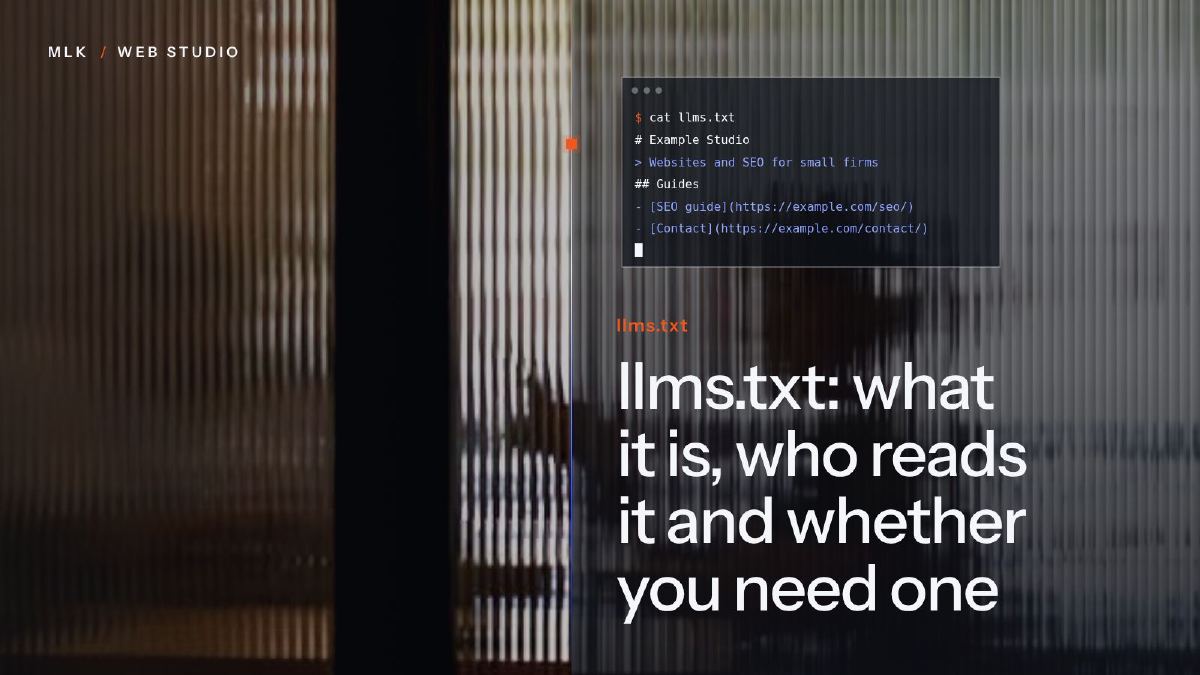 llms.txt: what it is, who reads it and whether you need one
llms.txt is a Markdown file that summarises your site for AI tools. Who really reads it in 2026, whether you need one and how to add it in ten minutes.
llms.txt: what it is, who reads it and whether you need one
llms.txt is a Markdown file that summarises your site for AI tools. Who really reads it in 2026, whether you need one and how to add it in ten minutes.
 Google AI Overviews and AI Mode: how to get your site cited
How Google picks the sites cited in AI Overviews and AI Mode, what raises your chances, how to see your impressions in Search Console and how to opt out.
Google AI Overviews and AI Mode: how to get your site cited
How Google picks the sites cited in AI Overviews and AI Mode, what raises your chances, how to see your impressions in Search Console and how to opt out.