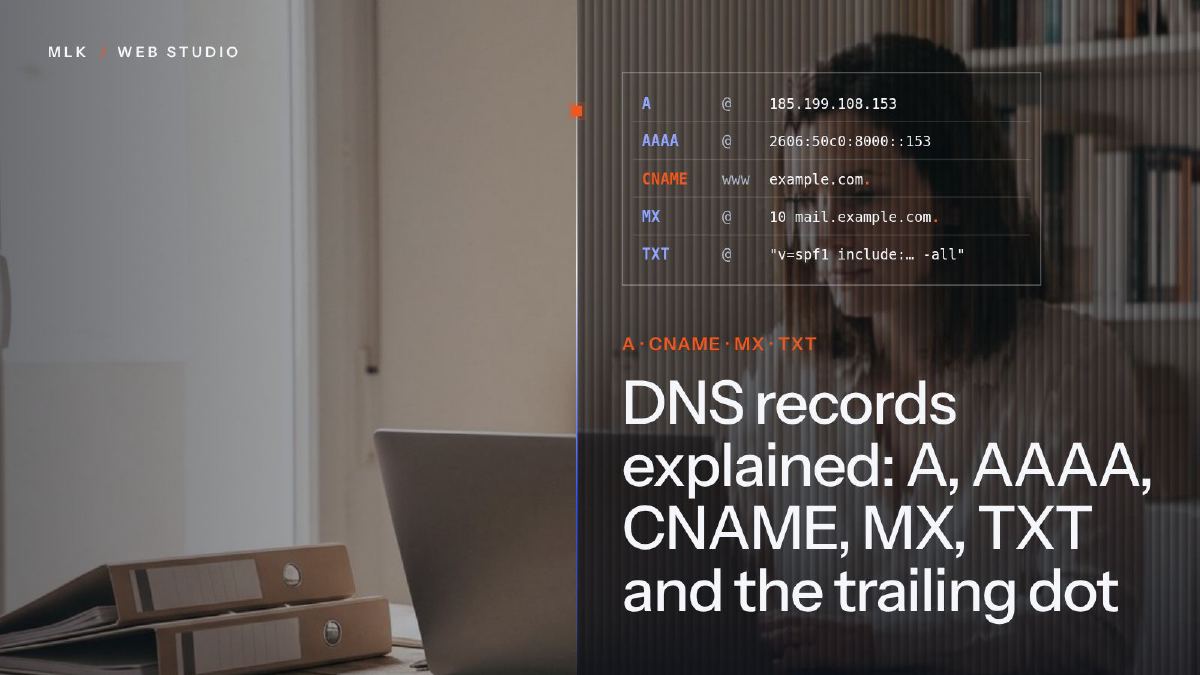
DNS records explained: A, AAAA, CNAME, MX, TXT and the trailing dot
DNS records explained in plain English: what A, AAAA, CNAME, MX and TXT records do, real examples, TTL, propagation and the trailing dot that breaks a CNAME.
DNS records are the lines in your domain’s zone that tell the internet where your website and email live: A and AAAA point a name to an IP address, CNAME makes one name an alias of another, MX says which servers receive your email and TXT holds SPF, DKIM, DMARC and ownership codes. Edit them at the DNS host your nameservers point to, never put a CNAME on the root domain, and in editors such as OVHcloud’s, end a CNAME target with a dot (ext-cust.squarespace.com.).
DNS records explained, the short version: each record is one line in your domain’s DNS zone, and together those lines tell the internet where your website lives, which servers receive your email and which services may act for your domain. Five types do nearly all the work for a small business: A, AAAA, CNAME, MX and TXT.
Connecting the domain is the last step of every website I build, and I have done it with domains registered at Namecheap, Spaceship, Infomaniak, Hostinger, OVH and the old Google Domains (now Squarespace Domains). Squarespace and OVH domains can be tricky: the only real issue I have hit was a single dot at the end of a record, so that dot gets its own section below.
If the difference between a domain, hosting and email is still fuzzy, start with my guide to domain vs hosting vs email.
Nameservers vs DNS records: where your zone lives
Three things are easy to mix up:
- The registrar is the company where you bought the domain and pay its renewal.
- The nameservers are the servers that hold your domain’s DNS. You choose them at the registrar, and the registry behind your extension (Nominet for .co.uk) sends every lookup their way.
- The DNS zone is the list of records on those nameservers: what you edit to connect a website or a mailbox.
Unless someone has changed the nameservers, the registrar usually hosts the zone too, so you edit records in the account where you pay for the domain. Namecheap calls the page Advanced DNS and OVHcloud has a DNS zone tab; my tutorials for Namecheap and Spaceship show where to find it, step by step.
The catch: if the nameservers point somewhere else (Cloudflare, a web host, a former agency’s account), the records at your registrar are ignored, however carefully you edit them. Your registrar’s domain page shows which nameservers are in use.
And changing nameservers is not the same as editing a record. It moves the whole zone to another company, and every record you do not recreate there disappears, MX records included. That is how a business loses its email overnight. Squarespace and GitHub Pages both connect a domain with a handful of records, so you keep your current nameservers.
DNS records explained: name, type, value and TTL
Whatever the panel looks like, every record has the same four parts, which a DNS server stores as one line:
; name   TTL    type    value
www      3600   CNAME   ext-cust.squarespace.com.
- Name (Host, Name or Sub-domain, depending on the panel).
@is the domain itself, also called the root or apex, andwwwstands forwww.yourdomain.co.uk. OVHcloud leaves the field empty for the root instead of using@. In most panels the name is relative to your domain: typewww, notwww.yourdomain.co.uk, or you may createwww.yourdomain.co.uk.yourdomain.co.uk. - Type: the kind of answer the record gives.
- Value (Target, Points to, Data): an IP address, another name or a piece of text, depending on the type.
- TTL (time to live): how many seconds other servers may keep the answer before asking again. 3600 is one hour.
The record types you will meet:
| Type | What it does | Example value |
|---|---|---|
| A | Points a name to an IPv4 address | 185.199.108.153 |
| AAAA | Points a name to an IPv6 address | 2606:50c0:8000::153 |
| CNAME | Makes a name an alias of another name | ext-cust.squarespace.com. |
| MX | Names the servers that receive your email | 1 smtp.google.com. |
| TXT | Holds text: SPF, DKIM, DMARC, ownership codes | v=spf1 include:_spf.google.com ~all |
| NS | Names the nameservers that hold the zone | Set at the registrar |
| SOA | The zone’s technical header | Managed by your DNS host |
| SRV | Points a service (calls, chat) to a server and port | Given by that service |
| CAA | Lists who may issue SSL certificates for the domain | 0 issue "letsencrypt.org" |
You will rarely touch the last four. One warning about CAA: if your zone has one, it must allow the certificate authority your website host uses, or the host cannot get a certificate and HTTPS never switches on.
A and AAAA records: pointing a name to a server
An A record points a name to an IPv4 address, the familiar four numbers separated by dots. An AAAA record does the same for an IPv6 address, which is four times longer: hence the four As.
GitHub Pages is a good real example. For the root of a custom domain, GitHub’s documentation lists four A records and four AAAA records (at the time of writing, October 2026):
@   A      185.199.108.153
@   A      185.199.109.153
@   A      185.199.110.153
@   A      185.199.111.153
@   AAAA   2606:50c0:8000::153
@   AAAA   2606:50c0:8001::153
@   AAAA   2606:50c0:8002::153
@   AAAA   2606:50c0:8003::153
Three rules apply:
- Several A records on one name are normal: they list several servers that can answer. Add all of them.
- An A or AAAA value is always an IP address, never a name, and never takes a final dot.
- Add AAAA records only if your host gives you IPv6 addresses. GitHub publishes four and advises keeping the A records alongside them; Squarespace’s list has none.
The classic mistake is the forgotten AAAA. You replace the A records with your new host’s addresses but leave an old AAAA on the root, and every visitor whose connection uses IPv6 keeps landing on the old server. The site can look fixed from your office and broken from a customer’s phone, depending on the network each one uses. If you are building a simple site yourself, my tutorial on how to build a website with AI and host it on GitHub Pages uses exactly these records.
CNAME records: aliases, and why the root never gets one
A CNAME record makes a name an alias of another name. The visitor’s resolver follows the alias and uses whatever addresses the target has, so when the platform moves its servers, it updates its own name and your record keeps working. That is why platforms give you a CNAME for www:
www   CNAME   ext-cust.squarespace.com.    ; a site on Squarespace
www   CNAME   <username>.github.io.         ; a site on GitHub Pages
It is one or the other: a name can carry only one CNAME. Two more rules come with it.
A CNAME lives alone. A name that has a CNAME cannot hold any other record, so delete any A, AAAA or TXT record on www before you add it.
Never a CNAME on the root. The root of your domain must hold the zone’s SOA and NS records, and usually your MX and SPF records too. A CNAME there would have to live alone, so the DNS standard does not allow it, and the panels that let you save one anyway can break your email. This is why Squarespace and GitHub Pages give you A records for the root and a CNAME only for www.
Some DNS hosts offer a way round it: an ALIAS or ANAME record, or what Cloudflare calls CNAME flattening. You enter a name, and the DNS host publishes the matching IP addresses on the root for you. GitHub lists ALIAS and ANAME records as an alternative to its A records.
MX records: where your email is delivered
An MX record tells other mail servers where to deliver email sent to your domain. Each one carries a priority number: the lowest is tried first, the others are fallbacks. Google Workspace now uses a single record:
@ MX 1 smtp.google.com.
Older Workspace domains have five MX records, from ASPMX.L.GOOGLE.COM to ALT4.ASPMX.L.GOOGLE.COM, and Google’s page of MX values says they keep working: if your email works, leave them alone.
What to remember:
- An MX record points to a name, never to an IP address, and never to a name that is itself a CNAME.
- When you change email provider, delete the old provider’s MX records. Leftovers send part of your mail to a mailbox nobody reads.
- MX records only cover incoming mail. Whether your outgoing mail is trusted depends on the TXT records below.
If you do not have a mailbox on your own domain yet, my guide to getting a professional email address compares the options.
TXT records: SPF, DKIM, DMARC and proof of ownership
A TXT record holds a piece of text that other services read. For a small business it does four jobs:
@                   TXT   "v=spf1 include:_spf.google.com ~all"
google._domainkey   TXT   "v=DKIM1; k=rsa; p=<public key from your provider>"
_dmarc              TXT   "v=DMARC1; p=none; rua=mailto:dmarc@yourdomain.co.uk"
@                   TXT   "google-site-verification=<code>"
- SPF, on the root, lists the servers allowed to send email for your domain.
- DKIM publishes a public key at a name ending in
._domainkey; receiving servers use it to check the signature on your emails. Some providers ask for a CNAME there instead. - DMARC, at
_dmarc, tells receiving servers what to do with mail that fails those checks, and where to send reports. - Ownership codes prove you control the domain. Google Search Console and many other services ask for one; GitHub Pages uses a TXT record named
_github-pages-challenge-<username>.
The root can hold several TXT records but only one SPF record. Two lines starting with v=spf1 make SPF fail (RFC 7208), so when a new service asks you to add an SPF record, merge its include: into the one you already have. The full set-up is in my SPF, DKIM and DMARC tutorial.
The trailing dot: one character that breaks a CNAME
In the zone-file syntax defined in RFC 1035, section 5.1, a name that ends with a dot is absolute: complete as written. A name without the final dot is relative, and the zone’s own name is added to the end of it. It is the same rule that makes www mean www.yourdomain.co.uk.
www   CNAME   ext-cust.squarespace.com.   ->  ext-cust.squarespace.com
www   CNAME   ext-cust.squarespace.com    ->  ext-cust.squarespace.com.yourdomain.co.uk
The second line points to a name that does not exist, so the www address never loads. Panels handle this differently. Some treat what you type as a complete name and add the final dot for you. Others write what you type straight into the zone: OVHcloud’s documentation says a CNAME target that is a domain name must end with a dot, and Google’s MX instructions mention DNS hosts that need smtp.google.com. written with it.
That dot is the only real issue I have hit with Squarespace and OVH domains. The record looks right at a glance, which is why the mistake survives a quick check. My tutorial on how to connect an OVH domain to Squarespace shows each field.
To check your own records, read them back after saving (OVHcloud’s text mode shows the zone as written) or look the name up. If the answer ends with your own domain, the dot was missing.
TTL and propagation: how long DNS changes take
Nothing is broadcast when you save a record. What people call propagation is caching: the resolvers that answer for your visitors (their internet provider’s, or public ones such as Google’s 8.8.8.8) keep each answer for its TTL, then ask again. With a TTL of 3600, most visitors see a change within the hour.
Providers quote longer windows to be safe. GitHub and OVHcloud say up to 24 hours, and Squarespace says 24 to 48 hours, sometimes up to 72. A nameserver change is the slowest of all, because resolvers also cache the registry’s list of your nameservers, and registrars usually quote up to 48 hours.
One more habit: do not test too early. A “does not exist” answer is cached too, so add the records first, then check once, a little later.
How to check your DNS records
Your browser and your computer cache answers too, so check with a tool that asks DNS servers directly. The free options: the dig command in a terminal on a Mac or Linux, nslookup or Resolve-DnsName (PowerShell) on Windows, or Google’s Dig tool in the Admin Toolbox in any browser.
$ dig +short yourdomain.co.uk NS
$ dig +short yourdomain.co.uk A
$ dig +short www.yourdomain.co.uk CNAME
$ dig +short yourdomain.co.uk MX
To see a change before the caches catch up, ask one of your nameservers directly, replacing ns1.your-dns-host.com with a name the first command returned: dig @ns1.your-dns-host.com www.yourdomain.co.uk CNAME. If the nameserver already gives the new value, your part is done and the rest is waiting.
Before you edit a live DNS zone: my checklist
- Check the nameservers, so you edit the zone the internet actually reads.
- Copy the whole zone into a text file. Some panels export it or show it as text; otherwise take screenshots. A deleted record goes back in a minute when you have its value.
- Change only what you are moving. A website move touches the A, AAAA and CNAME records on the root and www; an email move touches MX, SPF, DKIM and DMARC.
- Redirecting a second domain, a .co.uk to your .com for example? Change only its web records and keep every mail record: MX, SPF, DKIM, DMARC, and autoconfig or autodiscover if they exist.
- Keep the rules: no CNAME on the root, one SPF record per domain, a final dot on CNAME and MX targets where your panel needs it and, on GitHub Pages, no wildcard record such as
*.yourdomain.co.uk, which GitHub warns lets other people claim your subdomains. - Delete records that point to services you have left. A CNAME to an account you closed can be taken over by whoever claims that name at the service next.
- Test with
digor Google’s tool, then wait out the TTL before changing anything else.
You do not need to hire anyone for a domain connection: it is a handful of records, and the platforms list them for you. Hand it over when the stakes are higher than the job: the domain sits in a former agency’s account, email stopped after a change and nobody kept a copy of the zone, or several services share the domain and nobody remembers which record does what. Connecting the domain is also part of every website I deliver.
Frequently asked questions
Do DNS changes affect SEO?
Is DNS hosting free with a domain name?
What is DNSSEC, and should I turn it on?
What is a PTR record?
Can a subdomain point to a different service from my main website?
Joana MehouWeb designer, SEO and cold emailing specialist
Joana Mehou has been building websites since the age of eleven and founded MLK Web Studio in 2021, between London and Paris: websites, SEO, cold emailing and automation for small businesses in the UK and France, with honest advice, including when you do not need to hire anyone.
More about the studioA website that brings in clients, designed, written and built for you.
 How to connect an OVH domain to Squarespace (and avoid the trailing-dot trap)
Connect an OVH domain to Squarespace step by step: what to delete in the OVHcloud DNS zone, the four A records, the www CNAME and the final dot OVH requires.
How to connect an OVH domain to Squarespace (and avoid the trailing-dot trap)
Connect an OVH domain to Squarespace step by step: what to delete in the OVHcloud DNS zone, the four A records, the www CNAME and the final dot OVH requires.
 Emails going to spam? How to set up SPF, DKIM and DMARC, step by step
Emails going to spam? Set up SPF, DKIM and DMARC step by step: check Gmail's Show original, add records at Spaceship, Namecheap or OVH, then tighten DMARC.
Emails going to spam? How to set up SPF, DKIM and DMARC, step by step
Emails going to spam? Set up SPF, DKIM and DMARC step by step: check Gmail's Show original, add records at Spaceship, Namecheap or OVH, then tighten DMARC.
 How to connect a Namecheap domain to Squarespace (Advanced DNS, step by step)
Connect a Namecheap domain to Squarespace in Advanced DNS: clear the parking records, add four A records and two CNAMEs, keep your email, redirect a .com.
How to connect a Namecheap domain to Squarespace (Advanced DNS, step by step)
Connect a Namecheap domain to Squarespace in Advanced DNS: clear the parking records, add four A records and two CNAMEs, keep your email, redirect a .com.